Guide for volunteers#
Logging hours, expense claims paid into your wallet, driving rides, the kitchen, and your hours report.
A volunteer helps run things: logging hours, driving, buying supplies, borrowing a vehicle. You sign in with a password and an authenticator code (see Getting started) and land on Today. Your menu is short: Today, Communities & spaces, My hours, My rides, My vehicles, My work, Tickets, Approvals, My expenses and My wallet. If you are also a member, the member app (see Members) is separate.
What you can do#
- Log the hours you worked and send them for approval.
- Claim back money you spent for the community, and have it paid into your wallet.
- Offer rides to events and drive them.
- See a report of your hours and what was paid back.
- Move money from your wallet to your own debit card.
Log hours#
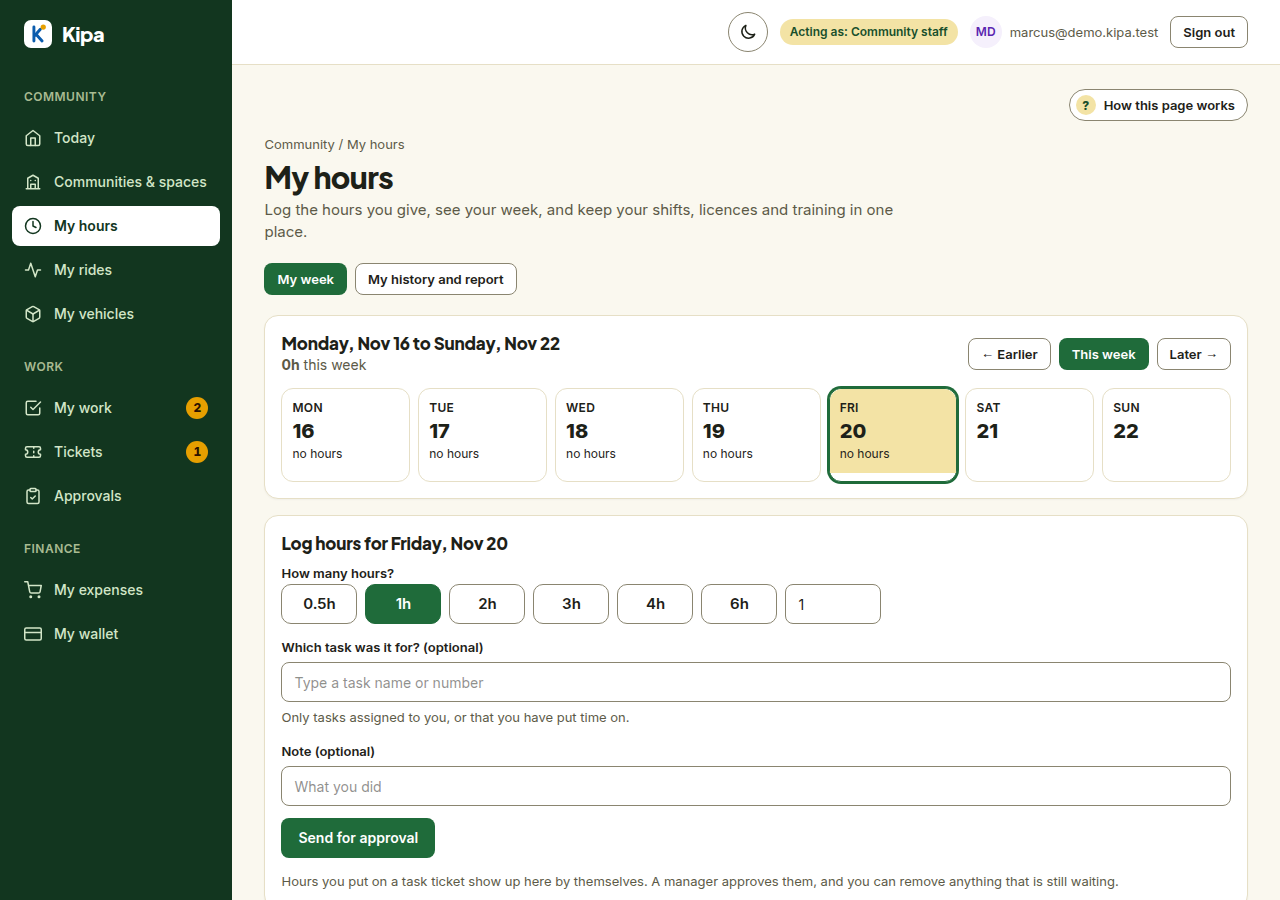
- Open My hours. A Monday-to-Sunday week shows, with today picked. Earlier, This week and Later change the week.
- Tap a day, tap a length (for example 2h), optionally choose a task, and press Send for approval.
- The hours appear on that day as Waiting, with the task number if you chose one. The week total goes up.
- A day that has not happened yet cannot be filled in.
- Press Remove on a Waiting entry to take it back. An Approved entry has no Remove.
If you log time on a task (a ticket assigned to you), that time also appears here, tagged with the ticket number. Taking the time off the ticket removes it here too, unless it was already approved.
Claim an expense#
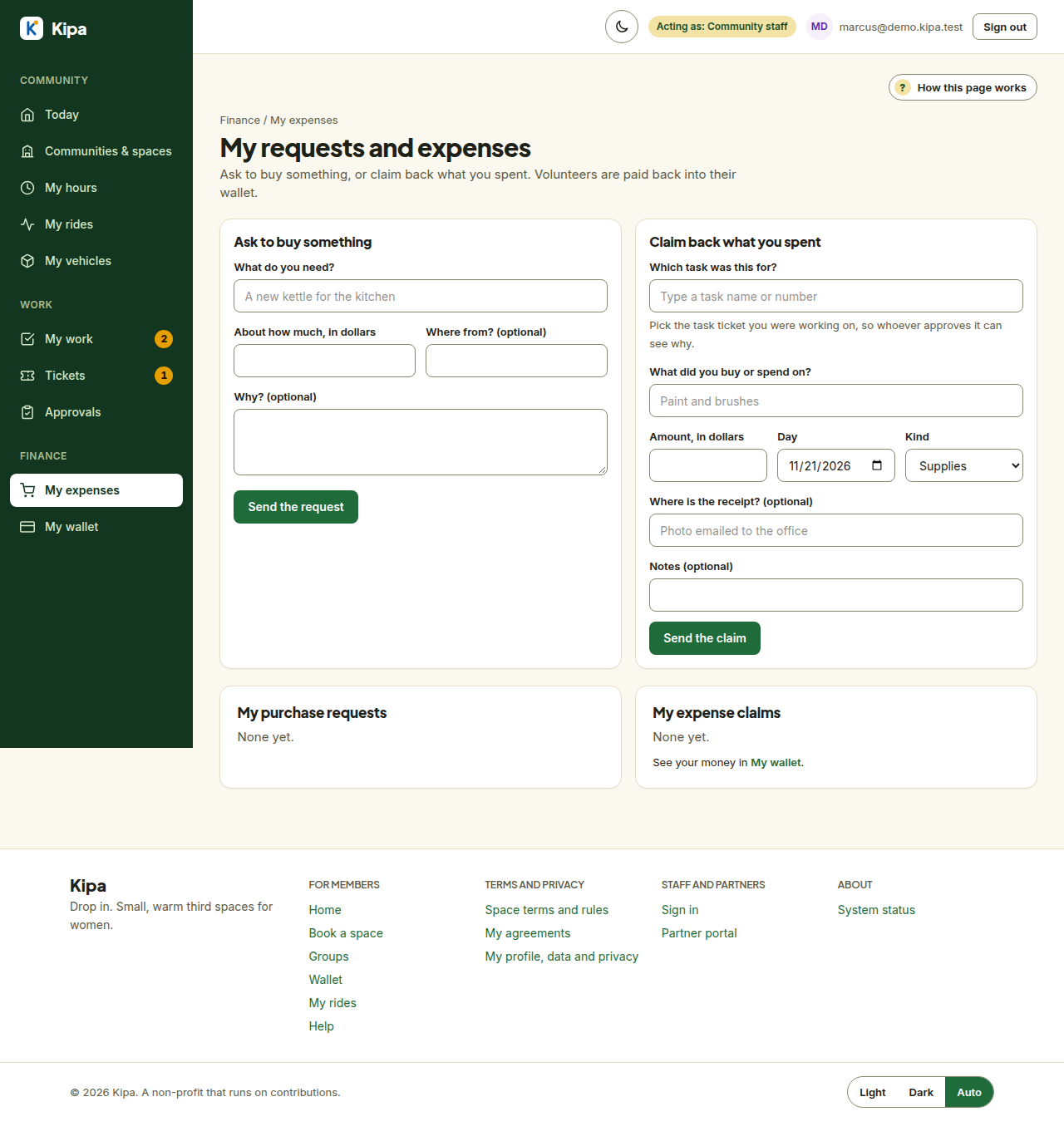
- Open My expenses. Pick the task, say what was bought, and enter the amount (for example 12.50). Add a receipt: a PDF or an image (JPEG, PNG, WebP), up to ten files of 15 MB each. Press Send the claim.
- You can only choose tasks assigned to you, or tasks where you logged time.
- A person other than you approves it (you cannot approve your own). You can follow it under Approvals, Submitted by me: Waiting for a decision, Approved, Paid into your wallet or Declined.
- When it is approved, the money goes into your wallet. The history says "Paid back to you" with what it was for, and the claim says Paid into your wallet.
- You can add more receipts only while the claim is still open.
Your wallet and your debit card#
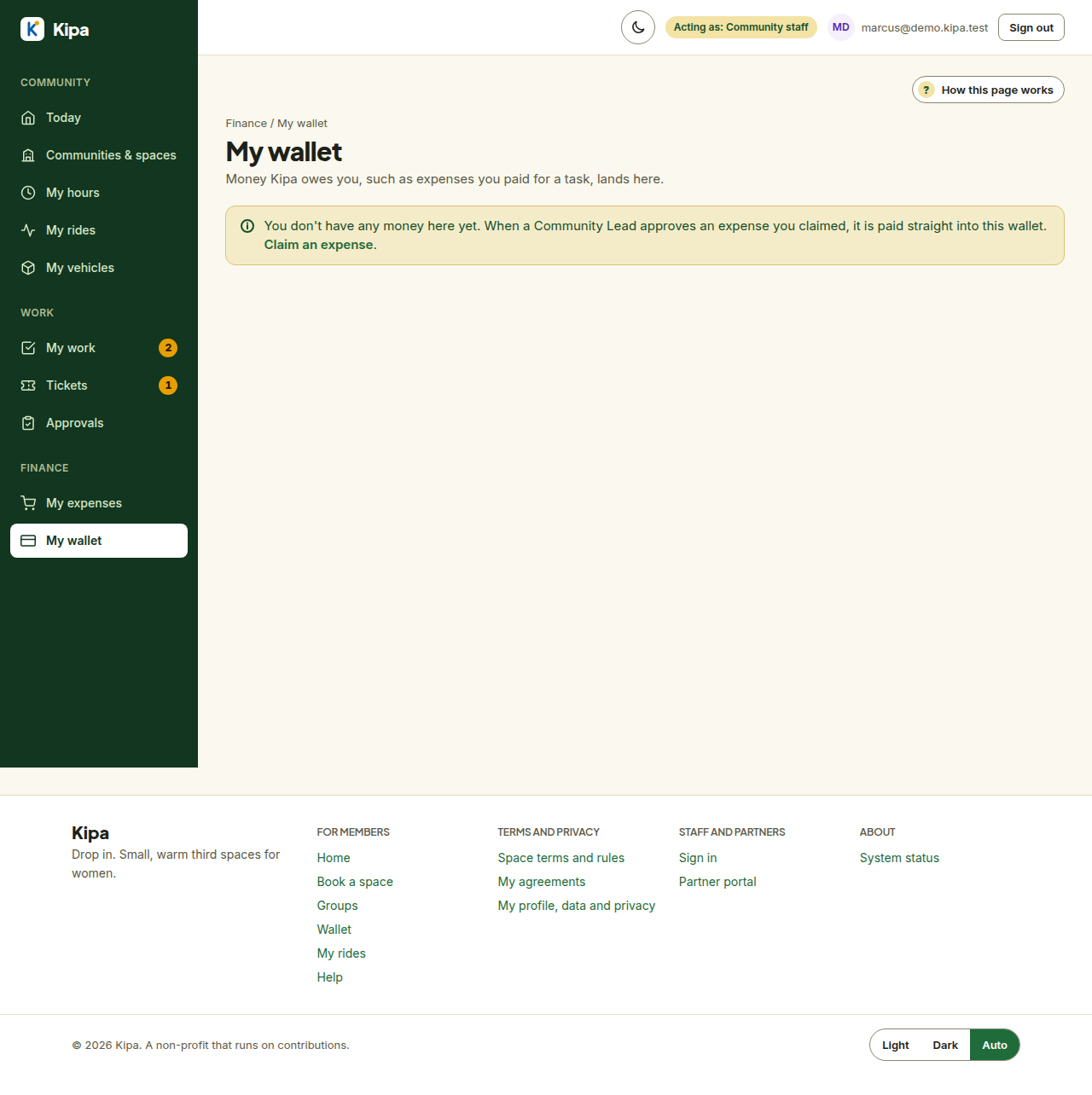
Open My wallet. With $5 or more in it you see Move money to my debit card: type an amount (or press All of it) and enter your debit card in the card form after you accept the wallet terms. Credit cards are refused.
- The wallet goes down straight away and On their way shows the transfer. When it arrives, History says Sent to your debit card and you get a notice.
- If the card is declined, the money comes back into your wallet by itself and the page says it did not go through.
- Not allowed: more than the wallet holds, less than $5, a second transfer while one is on its way, or more than three in a day.
Drive rides#
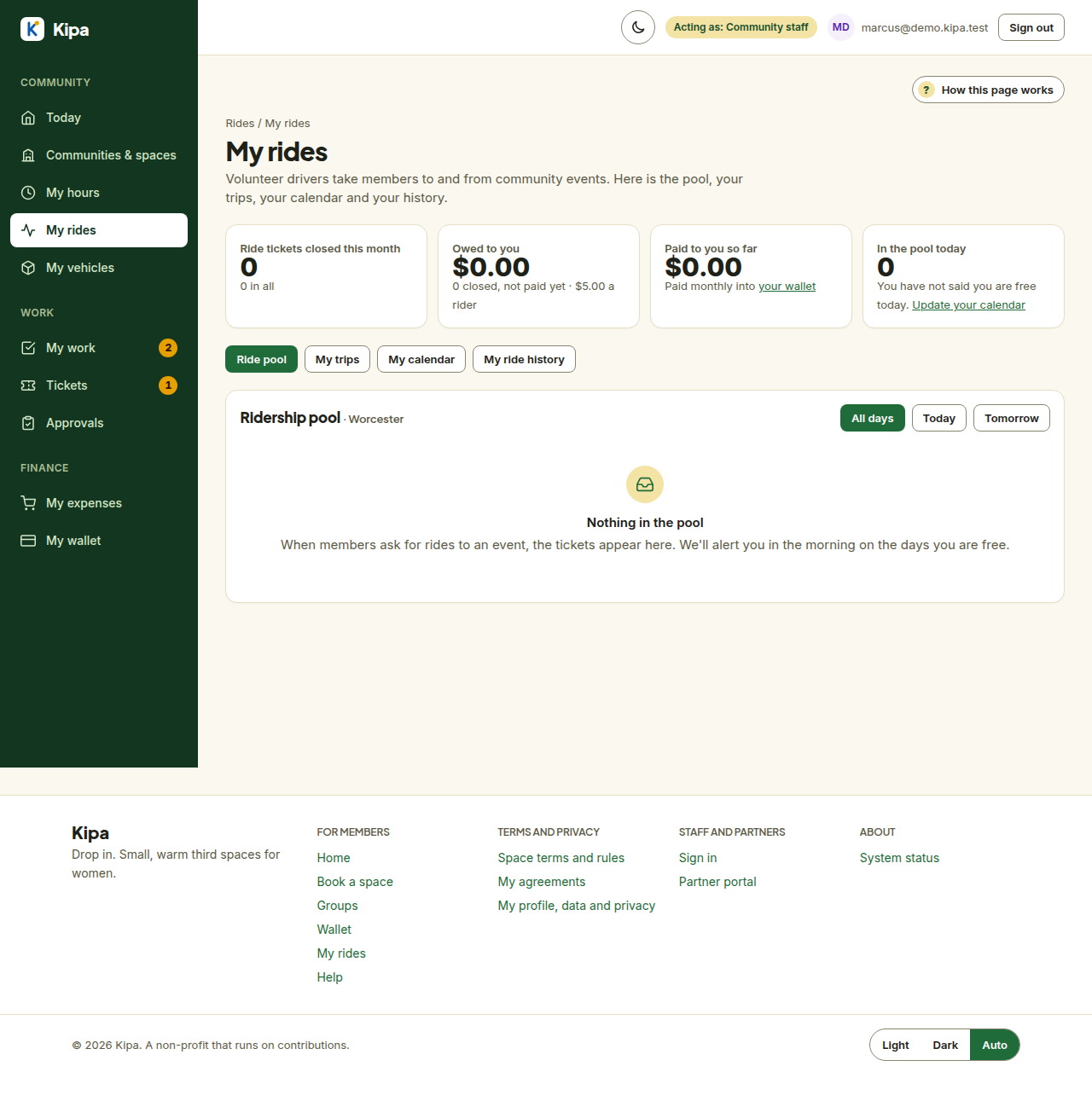
Members ask for rides to events. A Community Lead recruits you as a driver and you then see My rides in the menu.
- My calendar. Tap the days you are free, set the hours (for example 8:00 to 12:00), repeat for a number of weeks and Save. The Community Lead sees who is free in the next two weeks.
- Ride pool. Each ticket shows only the street name (no house number or rider name), the drop-off address, the time, and "You are free then" on days you marked free. Filter by all days, today or tomorrow. At 7 am local time you get one notice on days you are free: "N ride requests waiting today".
- Tick one or more rides and press Accept all N as a car pool. A trip opens with each rider's full pickup address, the drop-off, and notes. Riders are told a driver said yes.
- Use the buttons as you go: I'm on my way (tell all), then for each rider I've arrived, Picked up, Dropped off. Each step updates the rider.
- If the rider does not come out, press Rider didn't come out. The ticket closes as cancelled and does not count.
- If you cannot do one, press I can't do this one. It goes back to the pool and the rider is told.
- At the end the trip moves to Finished trips.
Your dashboard shows tickets closed this month and in all, what you are owed at the flat rate, what has been paid, and the pool today. My ride history shows each closed ticket with Paid or Not paid yet, and you can download a spreadsheet.
A driver who is paused (by the Community Lead) sees a "Not a driver" message in the pool.
Ask for a vehicle#
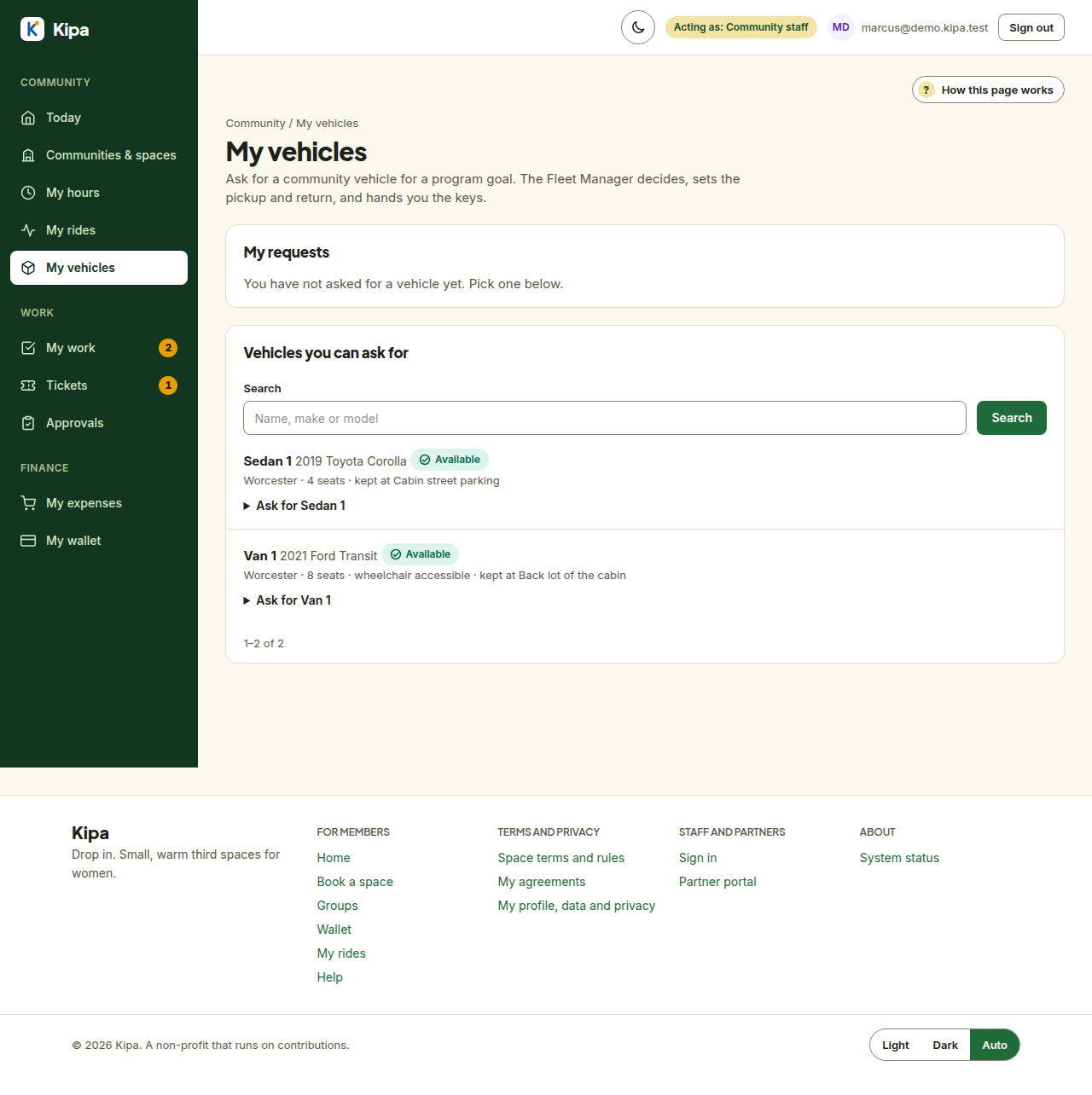
Under My vehicles, Vehicles you can ask for lists the community's vehicles. Open Ask for a vehicle, say the goal, the start and return times, and send. The request shows under My requests as Waiting for a decision. A past start, a return before the start, or more than 14 days is refused. When it is approved you see the pickup, return, miles, gas card, roadside help and conditions; accept the vehicle terms, and bring it back on time. See Fleet Managers for what the Fleet Manager checks.
Help in the kitchen#
Helping in the kitchen is done from the member app: Community Kitchen, Volunteer (see Members). After the Head Chef onboards you (an orientation day and a certificate end date) they can give you shifts, and you confirm them and get a reminder the day before.
Your hours report#
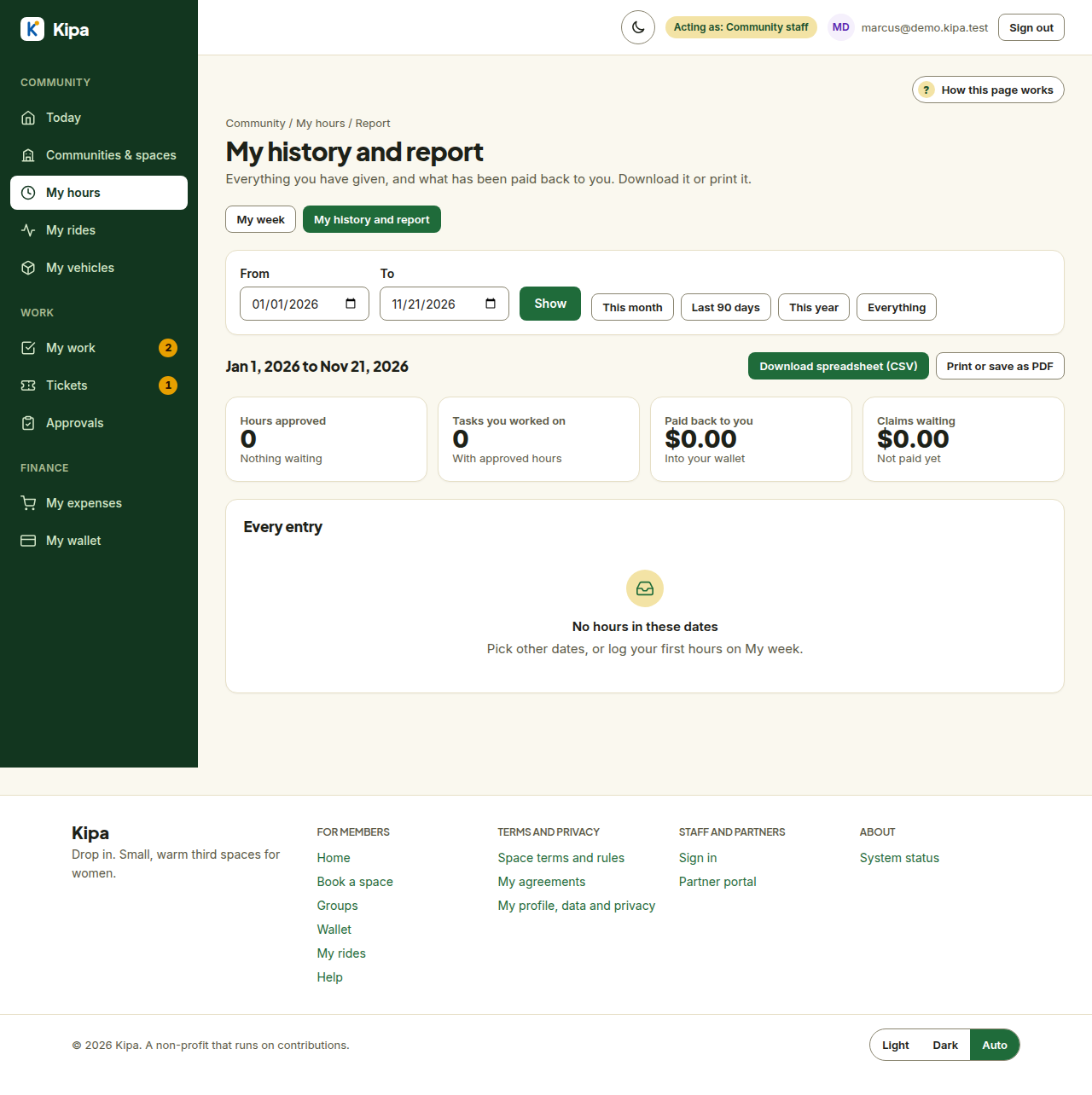
- Open My history and report and pick a period such as This year.
- You see totals: hours approved, tasks worked on, paid back, and claims waiting. Approved hours are shown by month. Every entry is listed, a page at a time.
- Download spreadsheet (CSV) opens in Excel or Google Sheets with an HOURS part and a REIMBURSEMENTS part. Print or save as PDF gives a clean copy without the menu.
If something goes wrong#
| You see | What to do |
|---|---|
| "That day has not happened yet" | Log hours after the day |
| You cannot choose a task | Only tasks assigned to you, or with your time on them, are offered |
| You cannot approve your own claim | Ask someone else |
| You cannot find a screen | Your menu only shows what volunteers may use |