Getting started#
Signing in, joining a community, the second step for staff, forgetting your password, language and look.
This page is for everyone, whatever your role. It covers the first things you need: how to ask to join, how to sign in, what to do if you forget your password, and how to change language and appearance.
What you can do#
- Ask to join a community as a member, a volunteer or a local service provider.
- Sign in with a password or a sign-in link sent by email.
- Reset a forgotten password yourself.
- Give money to a community without joining (see Giving without an account).
- Use Kipa in English, Spanish or Portuguese, in light or dark colours, on a computer or a phone.
The sign-in page#
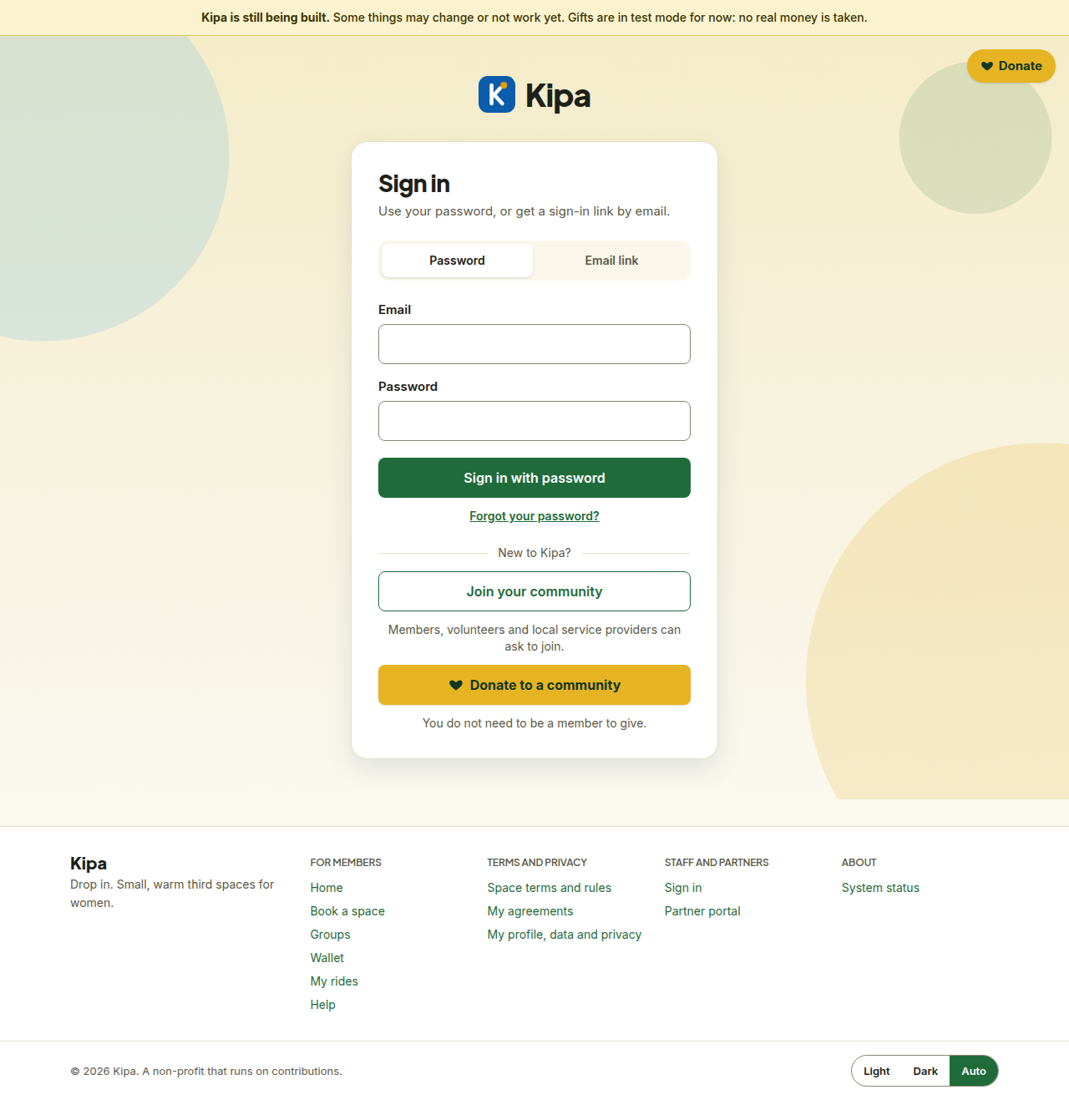
The notice at the top says Kipa is still being built. While card payments run on a test bank, it also says no real money is taken.
Ask to join a community#
Anyone can ask. Nobody is let in until a person at the community says yes.
- On the sign-in page press Join your community.
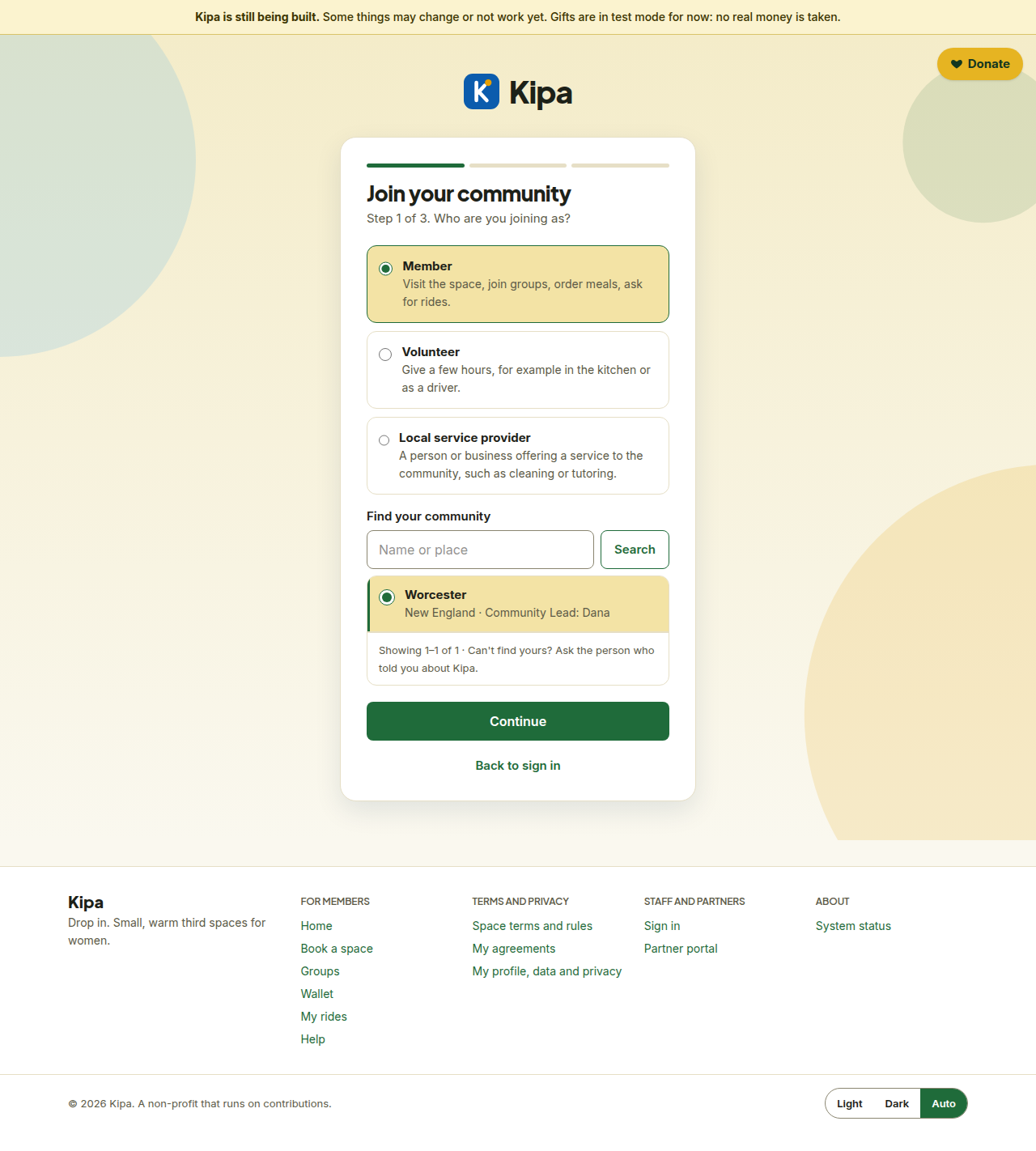
- Choose who you are: Member, Volunteer or Local service provider.
- Type part of a community's name (for example "Worc") and choose it. Each result shows the region and the Community Lead's first name. Press Continue.
- Fill in your name, email, phone, language and an optional note. Use an email you can read right now.
- Press Send me the link. The page says Check your email.
- Open the email and press the link. A page with a Continue button opens (just opening the link does nothing, on purpose). Press Continue.
- The page says Request received and names the Community Lead who will decide.
What happens next:
- A Member or Volunteer request goes to the Community Lead (and the Program Manager can see it too).
- A Local service provider request goes to the Program Manager.
- When someone approves, you get an email saying "Good news: you can join" with a set-up link. If someone declines, you get an email with their reason, and no account is made.
Finish setting up your account#
After you are approved, the setup link takes you through a short list of steps: details about you (including a mobile phone number and a street address), documents or agreements to accept, and, for some roles, a background check or training confirmation. The steps differ by role. When the last step is reviewed and accepted by the Community Lead, your status becomes active and you land on your home screen.
You can leave and come back. The steps you finished stay finished.
Sign in#
- Open the Kipa address and use the Password tab: type your email and password and press Sign in with password.
- Or use the Email link tab: type your email, press the button, and open the link in the email.
- Staff, managers and System Admins are asked for a six-digit code from an authenticator app after the password. Members, volunteers, partners and donors are not.
Where you land depends on who you are:
| You are | You land on |
|---|---|
| A member, volunteer or donor | Home (the member app) |
| A Community Lead, employee, Head Chef, Fleet Manager, Finance | Today (the staff area) |
| A Program Manager or the Executive Director | Management |
| A System Admin | Administration |
| A person from a partner company | The partner overview |
If you pick the wrong password, the page says the email and password did not match. It never says whether the email exists. Your email stays in the box so you only retype the password.
Forgot your password#
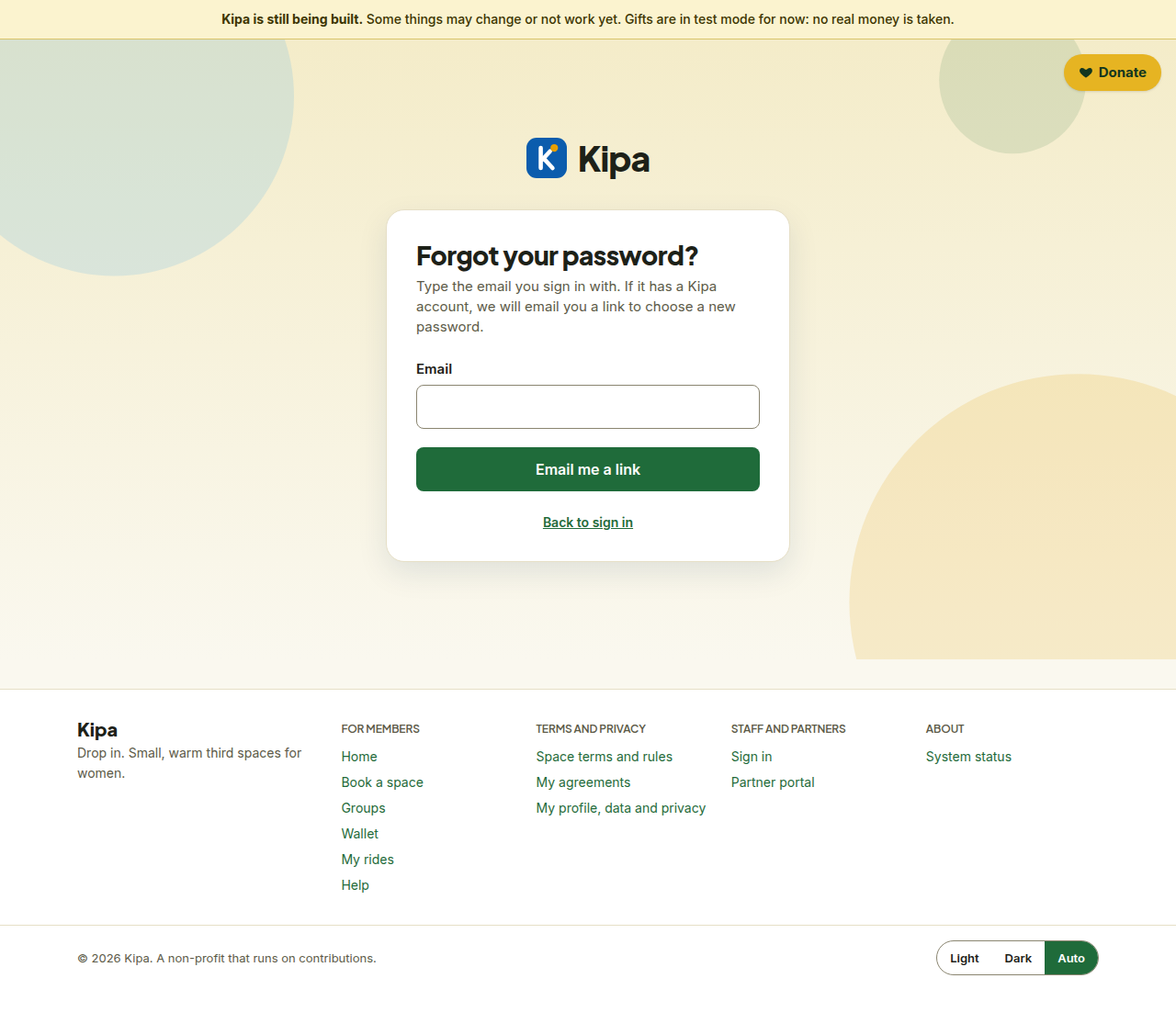
- On the sign-in page press Forgot your password?
- Type your email and press Email me a link.
- The page says Check your email. This is the same answer for every address, so nobody can find out who has an account.
- Open the email "Reset your Kipa password" and press Choose a new password.
- A page with a Continue button opens. Press it, then type a new password twice and save.
- Sign in with the new password. The old one no longer works.
Language and appearance#
- Language. Members choose English, Spanish or Portuguese on Me (Language, notifications and your data). Menus and screens switch at once.
- Light, dark or automatic. Use the sun/moon button at the top, or Light / Dark / Auto in the footer. Auto follows your device. Kipa remembers your choice.
- Phone. Kipa works in a phone browser. On an iPhone or Android phone you can add it to your home screen from the browser menu so it opens like an app.
Signing out#
Use Sign out at the top right. After signing out, the Back button does not show signed-in pages.
If something goes wrong#
| You see | What it means | What to do |
|---|---|---|
| "That email and password did not match" | Wrong email or password | Try again or use Forgot your password |
| The code page again after the password | A staff sign-in needs the authenticator code | Enter the six-digit code from your authenticator |
| "Check your email" but nothing arrives | The address may have no account, or the email is in spam | Check spam; wait a minute; ask again (3 a time per hour) |
| A reset link says it cannot be used | Links work once and expire | Ask for a new link |
| You have no access yet | Your account has no team yet | Ask your Community Lead |