Guide for members#
Home, booking a space, your wallet, groups, messages, help, rides, the community kitchen, giving and local services.
A member belongs to one community. This guide covers everything you see after you sign in as a member. If you have not joined yet, read Getting started first.
What you can do#
- Book a room or space, alone or for your group.
- Keep a wallet, add money, and see every payment.
- Join or propose groups and chat with them.
- Order meals from the Community Kitchen.
- Ask for a ride to an event.
- Give money to a program, and find local service providers.
- Ask for help, report a problem, and control your privacy.
The menu#
The top menu on a computer (and the bottom tabs on a phone) always has: Home, Bookings, Groups, Inbox, Help, Wallet and Me. Members never see the staff menu.
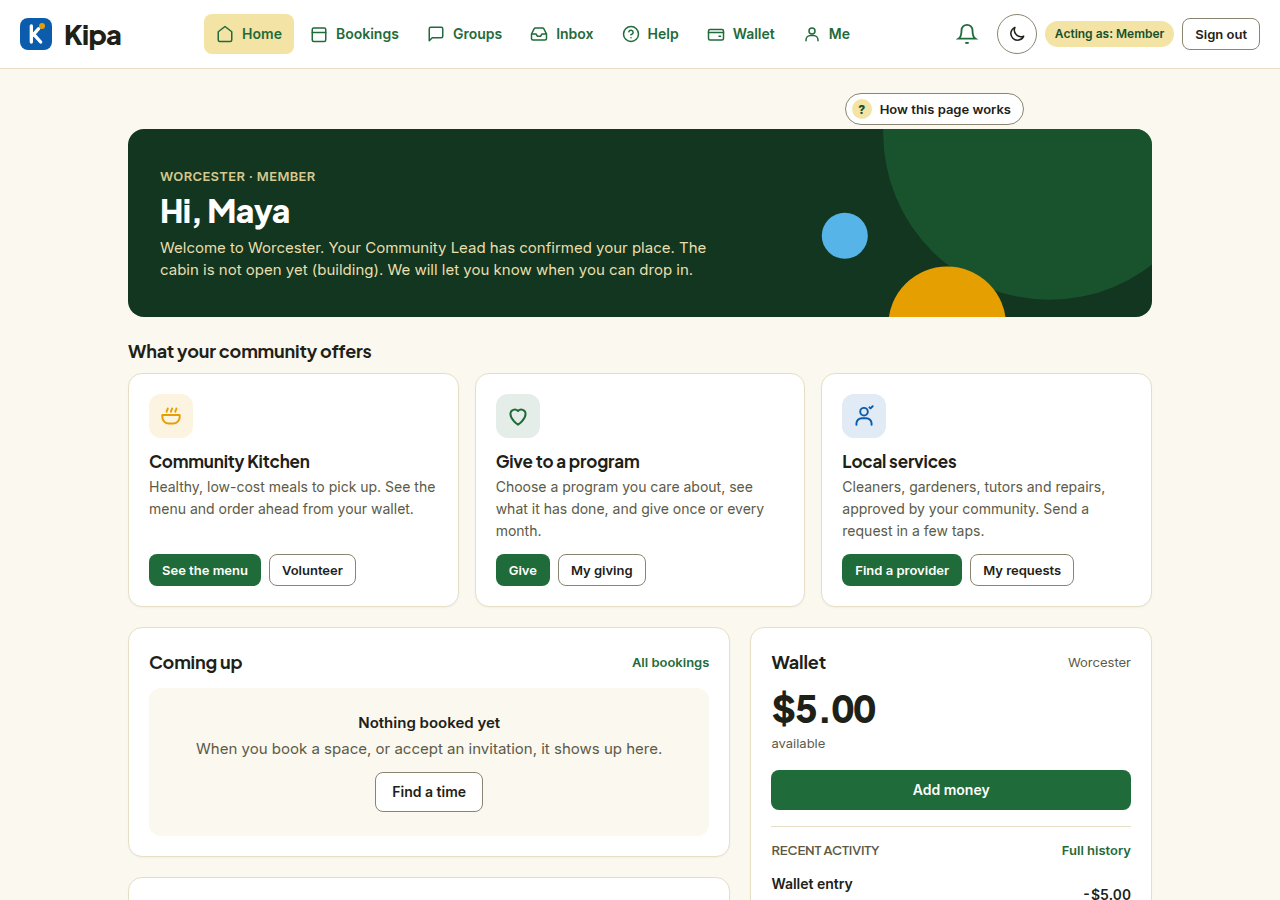
Home shows the next things first: invitations ("You're invited"), what is coming up, your wallet balance with recent activity, and cards for the Community Kitchen, giving and local services. If you have not yet added a phone number and street address, a note asks you to.
Book a space#
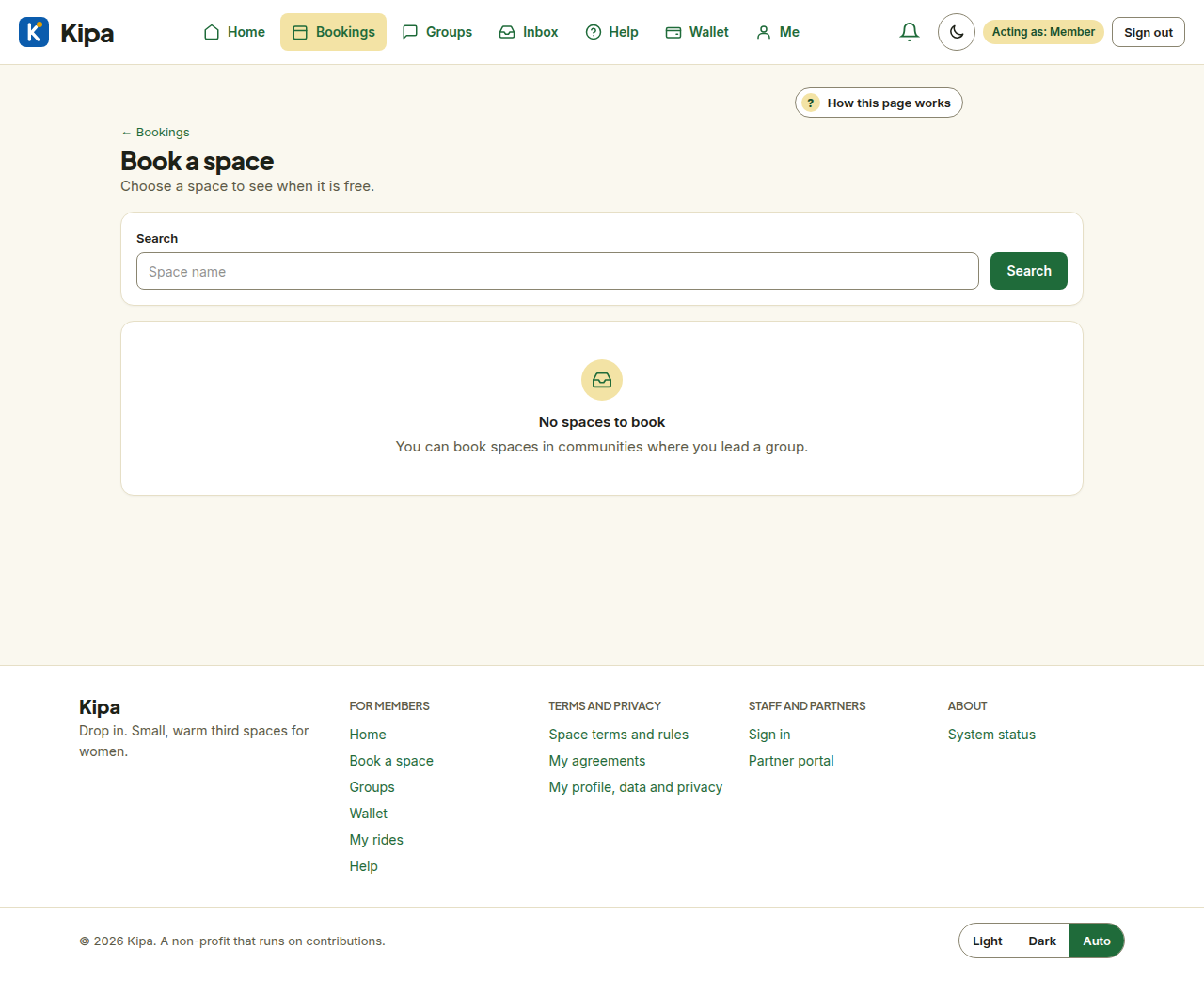
Only a group's lead books. If you are a member of a group, the lead's bookings appear as invitations to you.
- Open Bookings, then Book a space.
- Pick a space. The page shows a suggested price (and what a group of your size comes to), the pay-what-you-can range, and the rules: how long, reset time, notice, cancel cut-off, and whether it needs approval. Nothing is taken at booking.
- Tap a day, then a free start time, then a length. Only free times can be tapped. You never type a time.
- Say how many people are coming. The suggested total changes at once.
- Fill in the group and the purpose, tick that you accept the space terms and rules, and press Book.
The booking is confirmed at once, or it waits for approval if that space needs it.
Checking in and giving#
At the start and end of a booking use Check in and Check out. A member with a wallet sees a card straight after checking in: it shows the suggested amount and lets you give from your wallet ($5, $10, $15) or choose Not today. The same card waits on the Wallet page until you answer.
Invitations#
When a group lead books, each member of the group gets an invitation on Home and in the Inbox. Press Accept to put it under Coming up, or Decline. If you accepted and cannot come, there is a Decline button under Coming up. The person who booked is told either way. If the lead cancels, you are told and it leaves your list.
Your wallet#
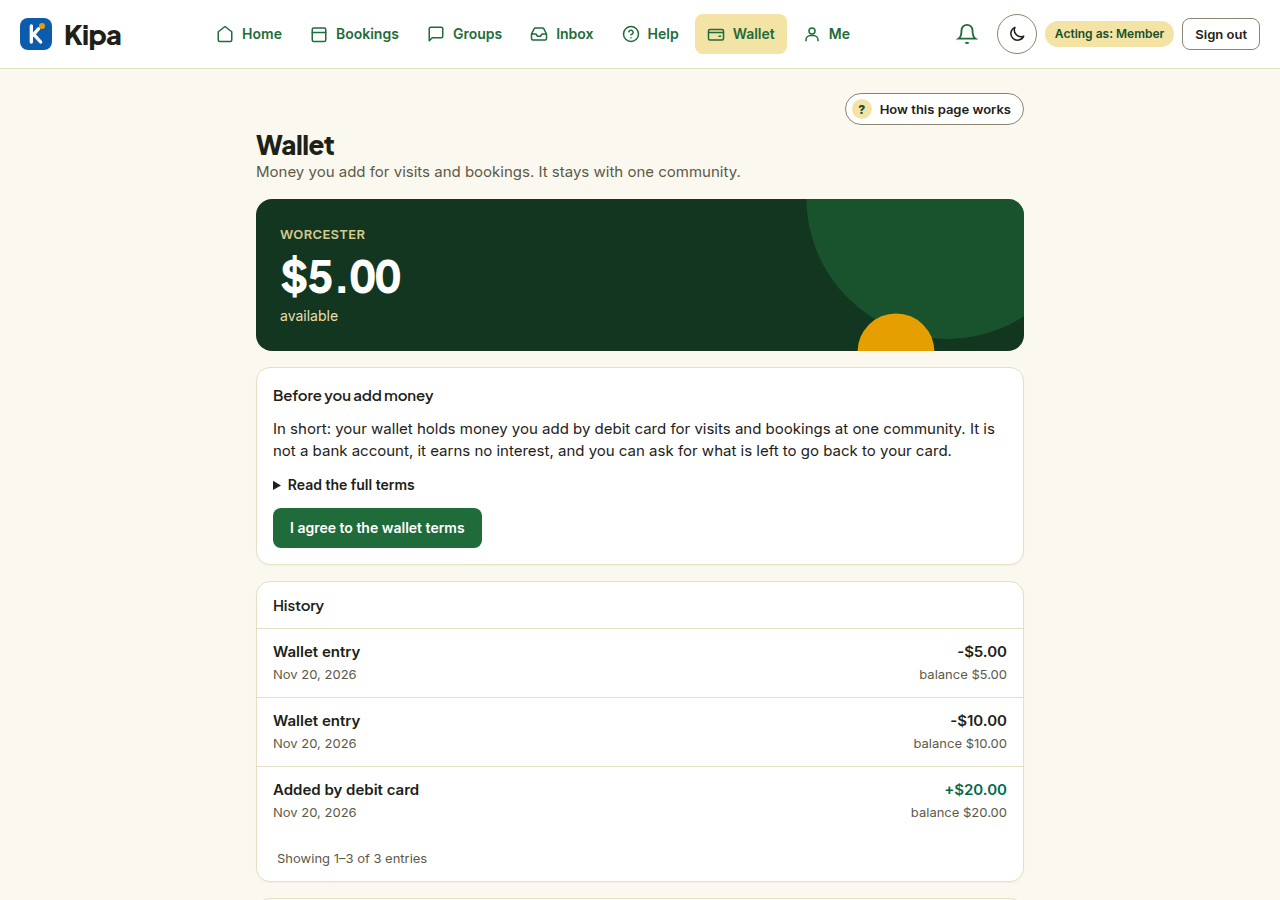
- Open Wallet. Read the wallet terms first. You cannot add money before you accept them.
- Press Add money, type an amount, and pay with a debit card. The page shows the card fee before you pay.
- Your balance and a paged history show every entry.
Groups#
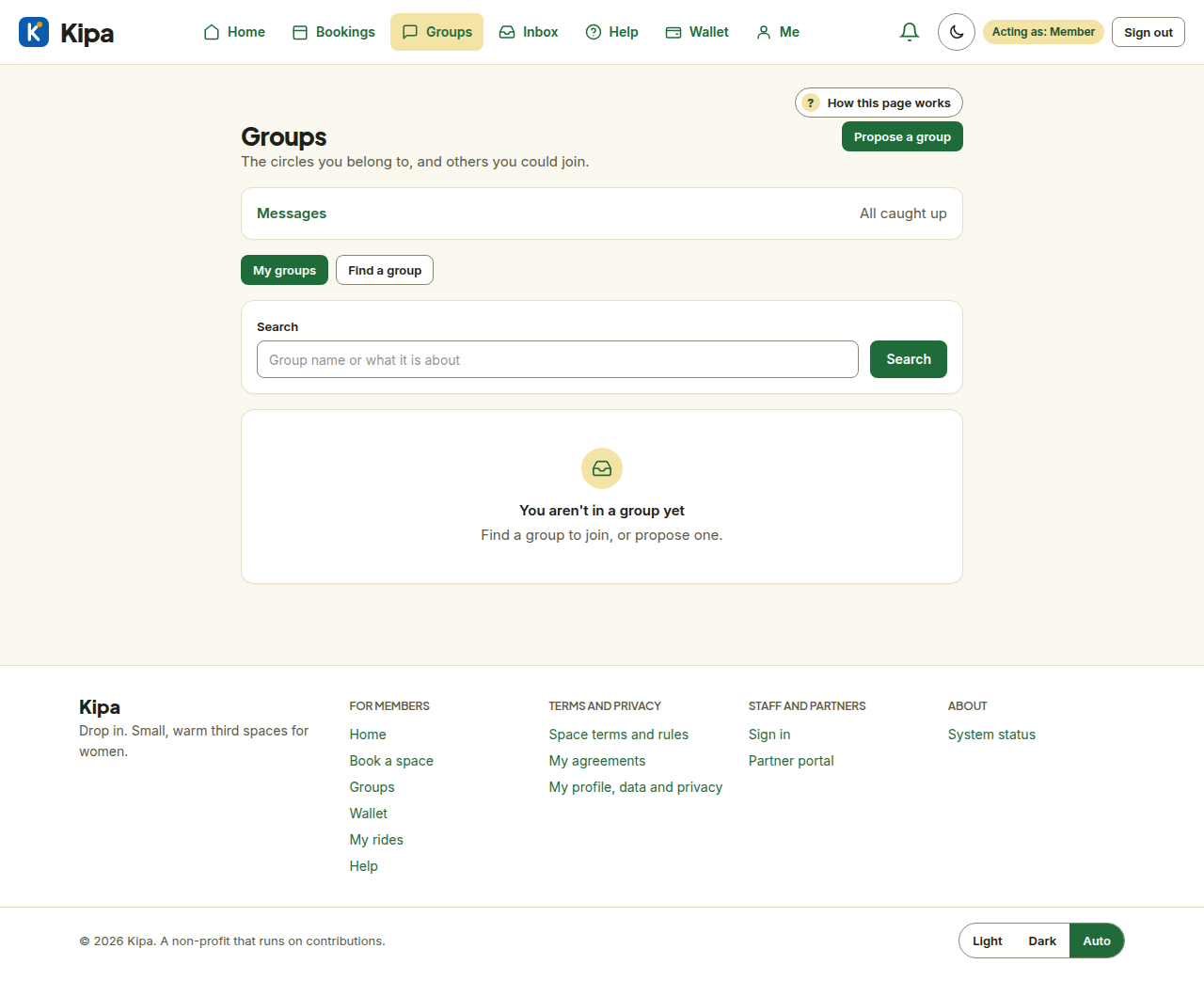
- Propose a group to start one. It waits for the Community Lead to approve it.
- Once live, members can join. Chat inside the group is visible only to the group's members.
- A group lead can add people from the community by typing a name. Each result shows a name, the last four digits of a phone and a street name, never a full number or house number. Typing four digits finds members whose number ends that way.
Messages and the Inbox#
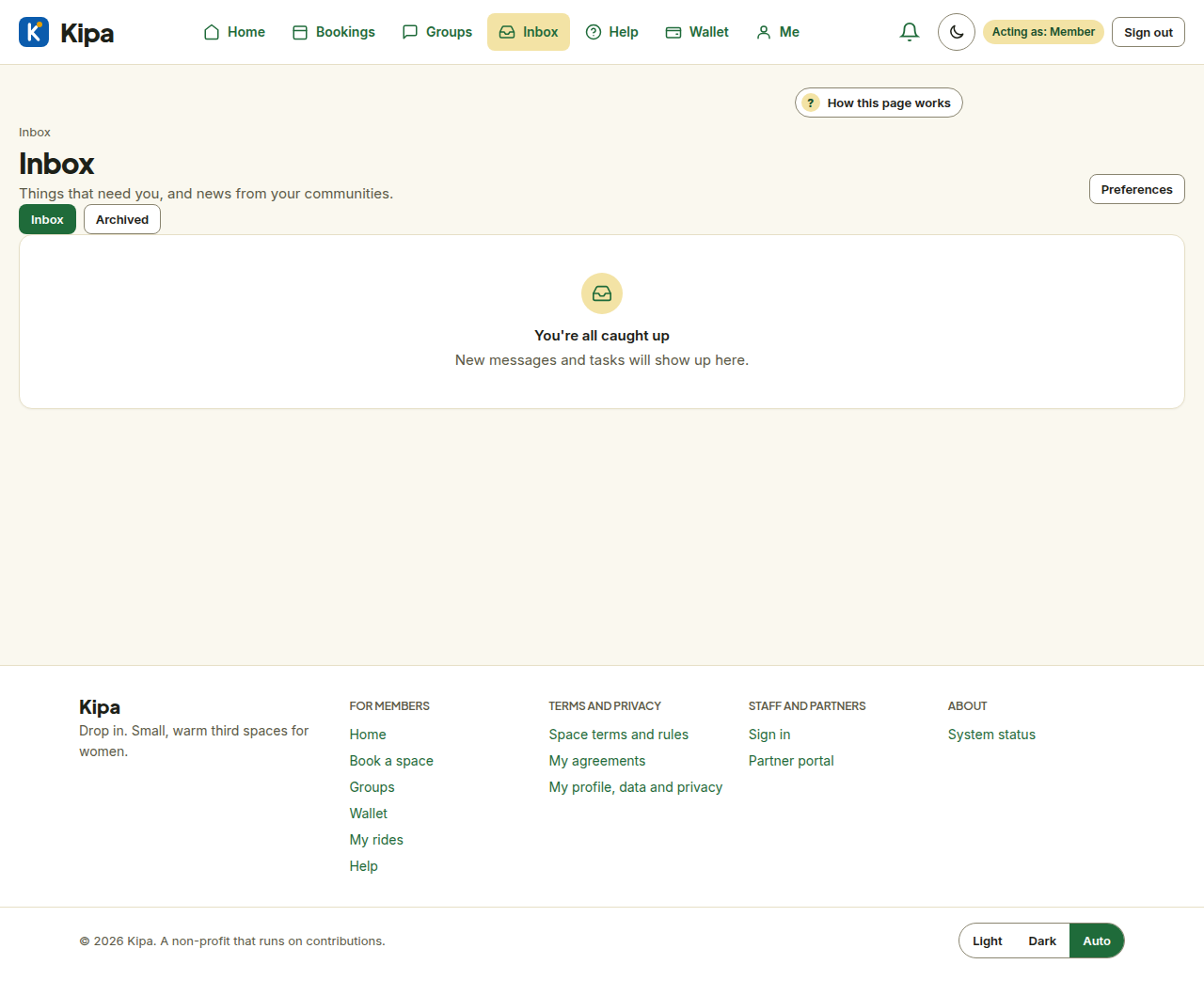
The bell at the top and the Inbox show only your own notices. Mark one as read or archive it. Inbox, Preferences lets you choose which notices you want.
Help and problems#
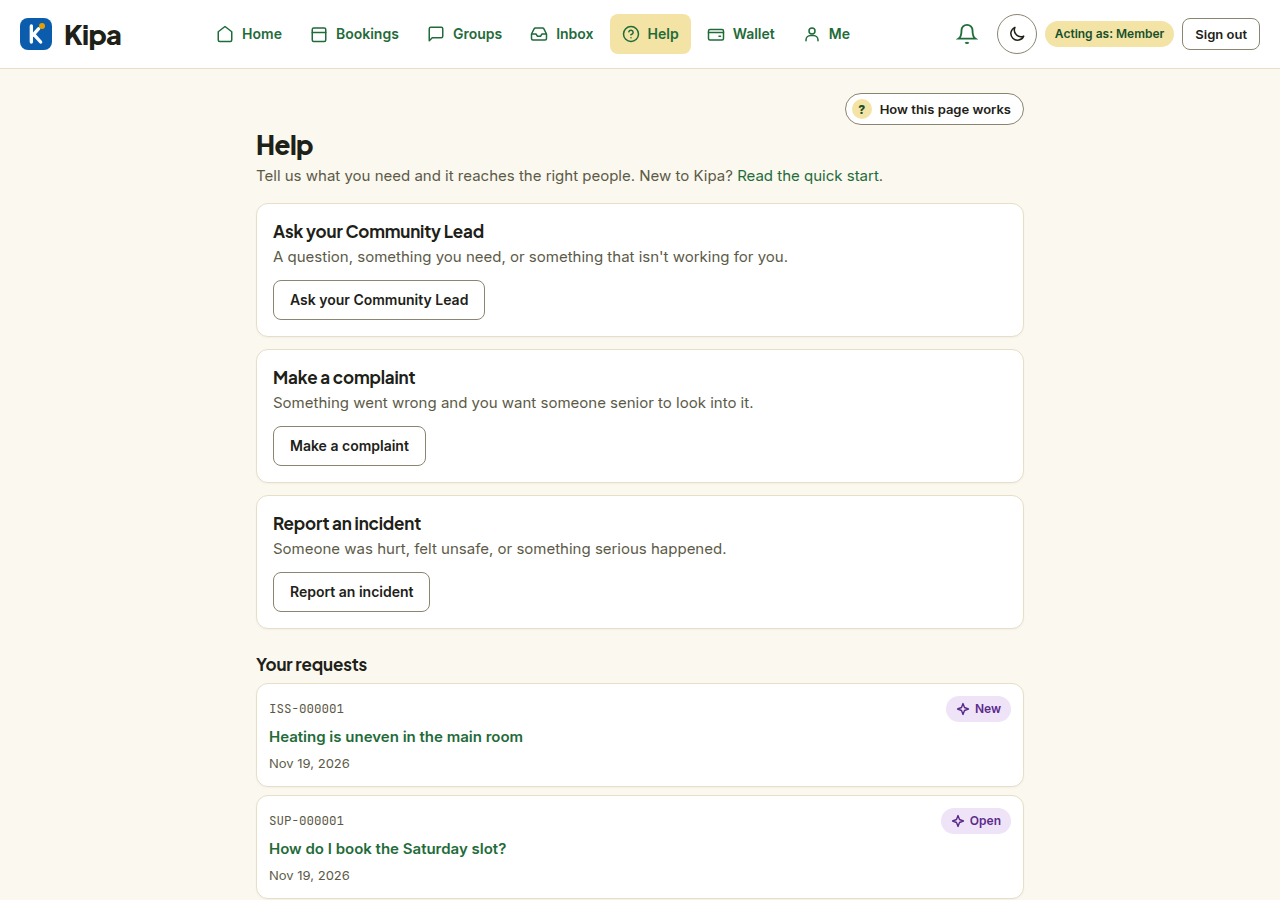
- Send a support request for a question or a fix. It appears under Help with a number so you can follow it.
- Report an incident if something unsafe or upsetting happened. A Community Lead is told, and the report is private to the people who need to see it.
Rides#
A volunteer can drive you to an event. A ride is never guaranteed.
- On an event invitation, press Accept, and I need a ride.
- A form asks for the pickup address (filled from your profile), whether you need a ride home too, an optional chip-in ($3 a ride from your wallet), and a note.
- Press Accept and ask for a ride. You then have two tickets (there and home), shown as Looking for a driver.
- Under My rides you follow each ticket: a driver said yes, on the way, arrived, picked up, dropped off. You get a notice at each step.
- You can cancel a ticket before pick-up. After pick-up there is no cancel.
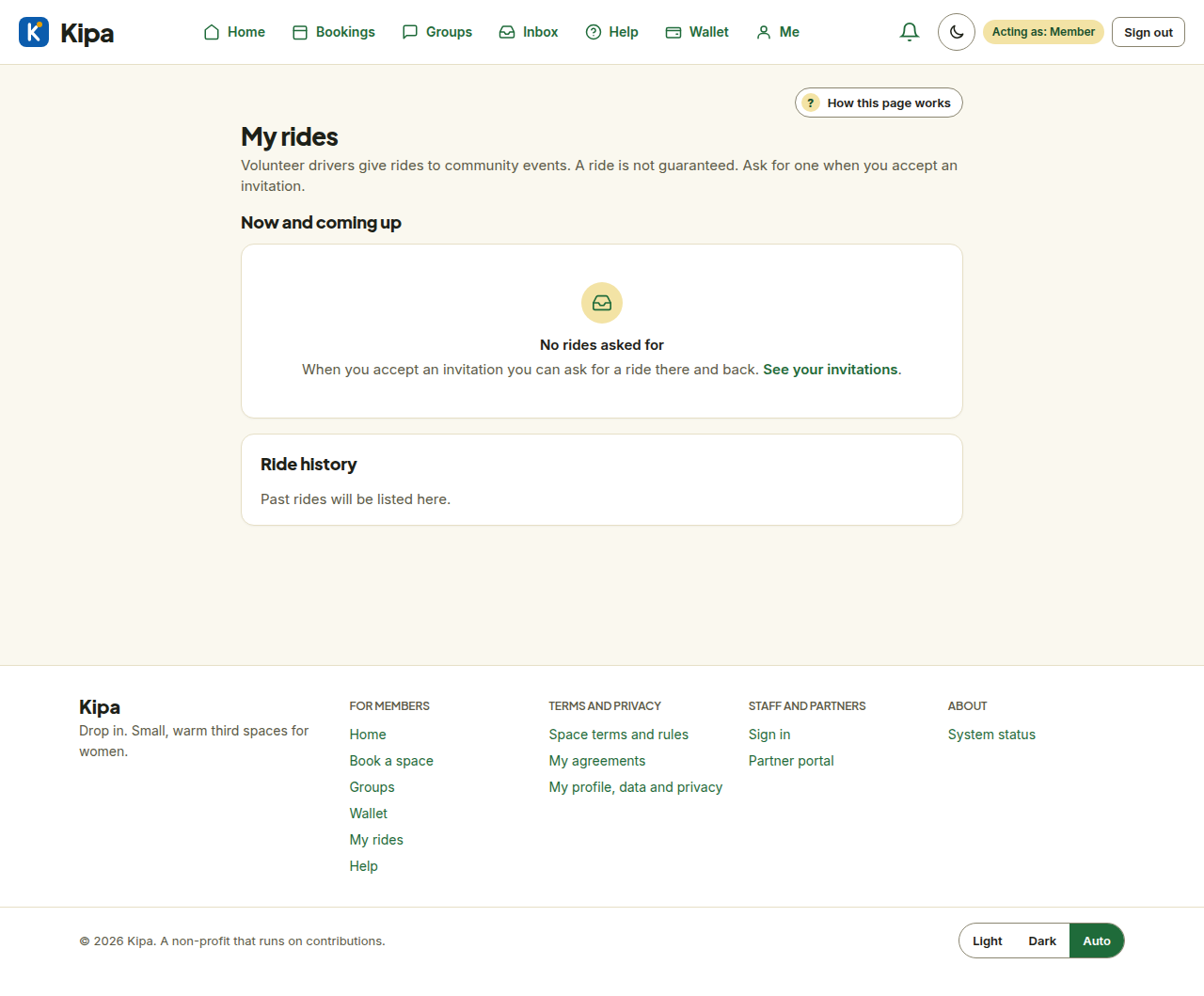
If the chip-in is chosen and your wallet is short, the ride still happens. The ticket shows the fee as unpaid and you are told.
Community Kitchen#
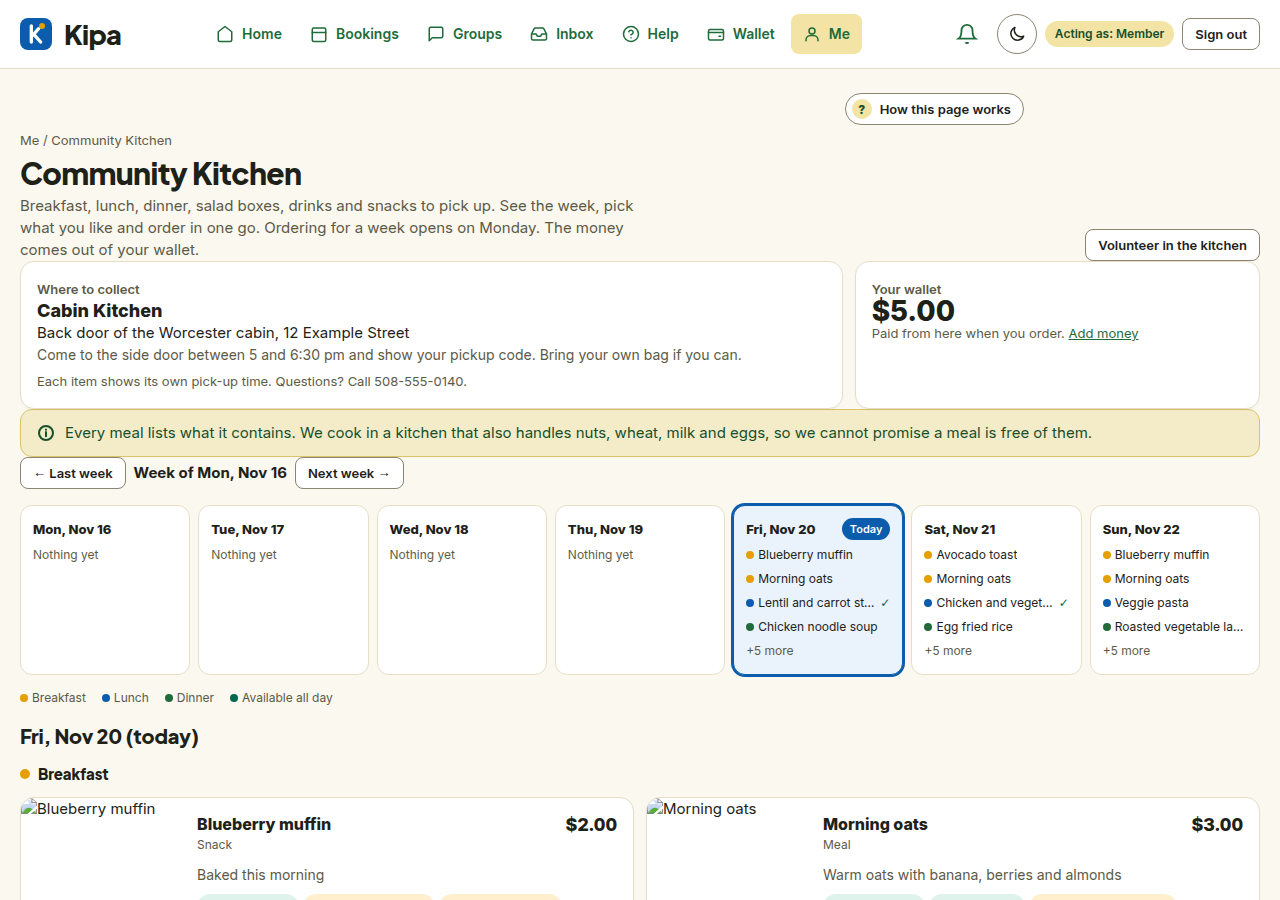
- Open Community Kitchen. The address and phone are at the top. A week calendar sits below; tap a day.
- Each day lists items as picture cards grouped Breakfast, Lunch, Dinner and Available all day, with the price, pick-up time, last time to order and how many are left.
- Add items (from different days if you like) to one basket and press Place order. The wallet goes down by the total and each item shows a pick-up code. If one item cannot be ordered, nothing is ordered.
- You can order for today or later this week. An item for next week says Ordering opens on Monday.
- A same-day order cannot be cancelled. An order for a later day can be cancelled and the money goes back to your wallet.
- You are told when your meal is Ready. An order not collected becomes a no-show, with no refund.
To help in the kitchen, press Volunteer and offer your time when the Head Chef asks for volunteers.
Give to a program#
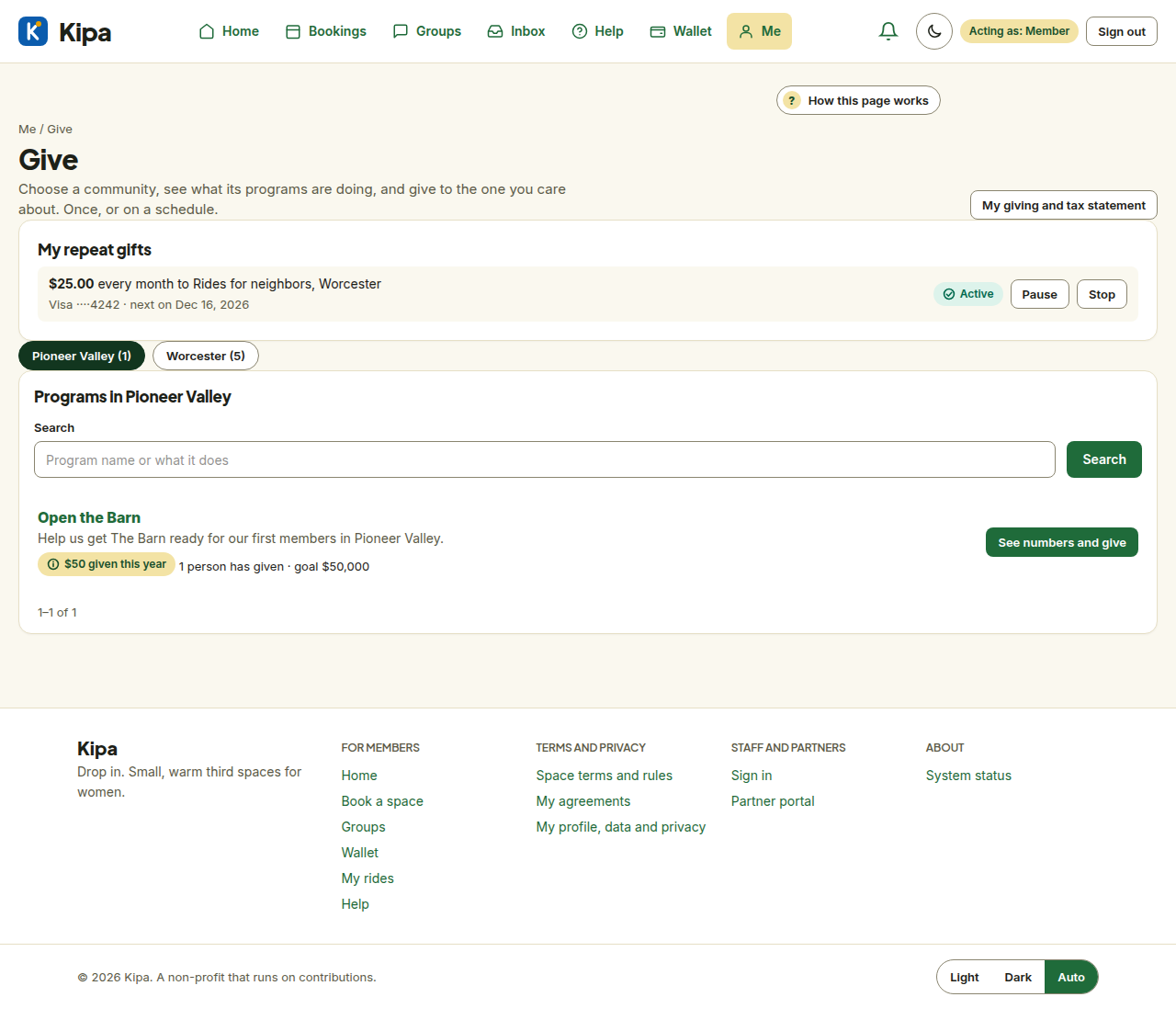
- Open Me, then Give (or Give on Home). Choose a program. It shows what has been given, how many people gave, and the goal.
- Choose an amount between $5 and $10,000, once or every month, and pay with a debit card.
- You see a thank-you and get a receipt by email. My giving lists each gift with its receipt number and program, a yearly tax statement you can print or save as a PDF, and a CSV download.
- My repeat gifts shows each monthly gift with its next day. You can Pause, Resume or Stop it.
Local services#
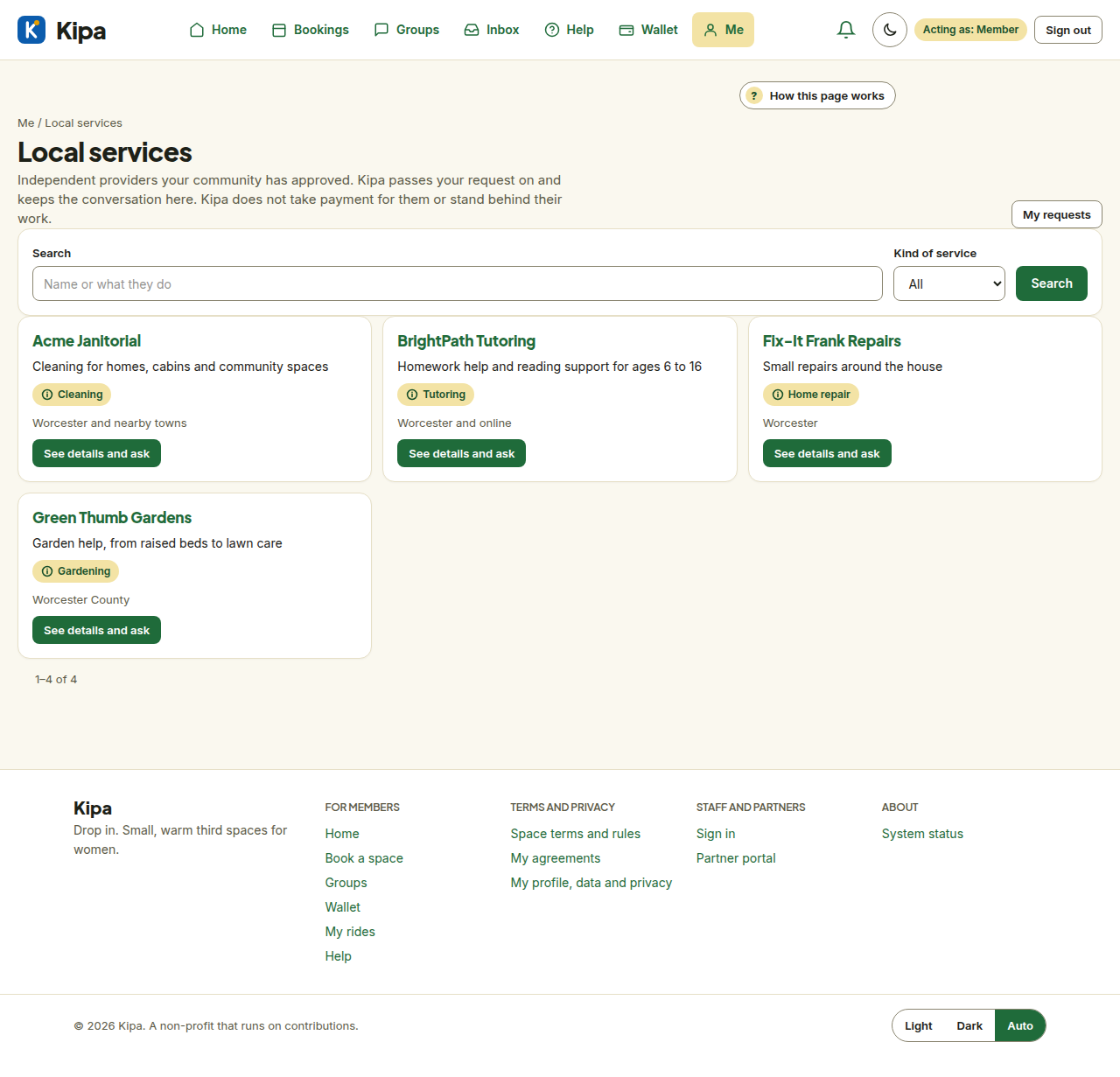
- Open Local services. Search, or filter by kind of service.
- Open a card, read the provider's terms and accept them.
- Send a request with how to reach you. It becomes a ticket you can follow under My requests, and you can cancel it while it is open.
- If something is wrong with a provider, press Report a problem. The Program Manager reads it.
Me: your profile, privacy and agreements#
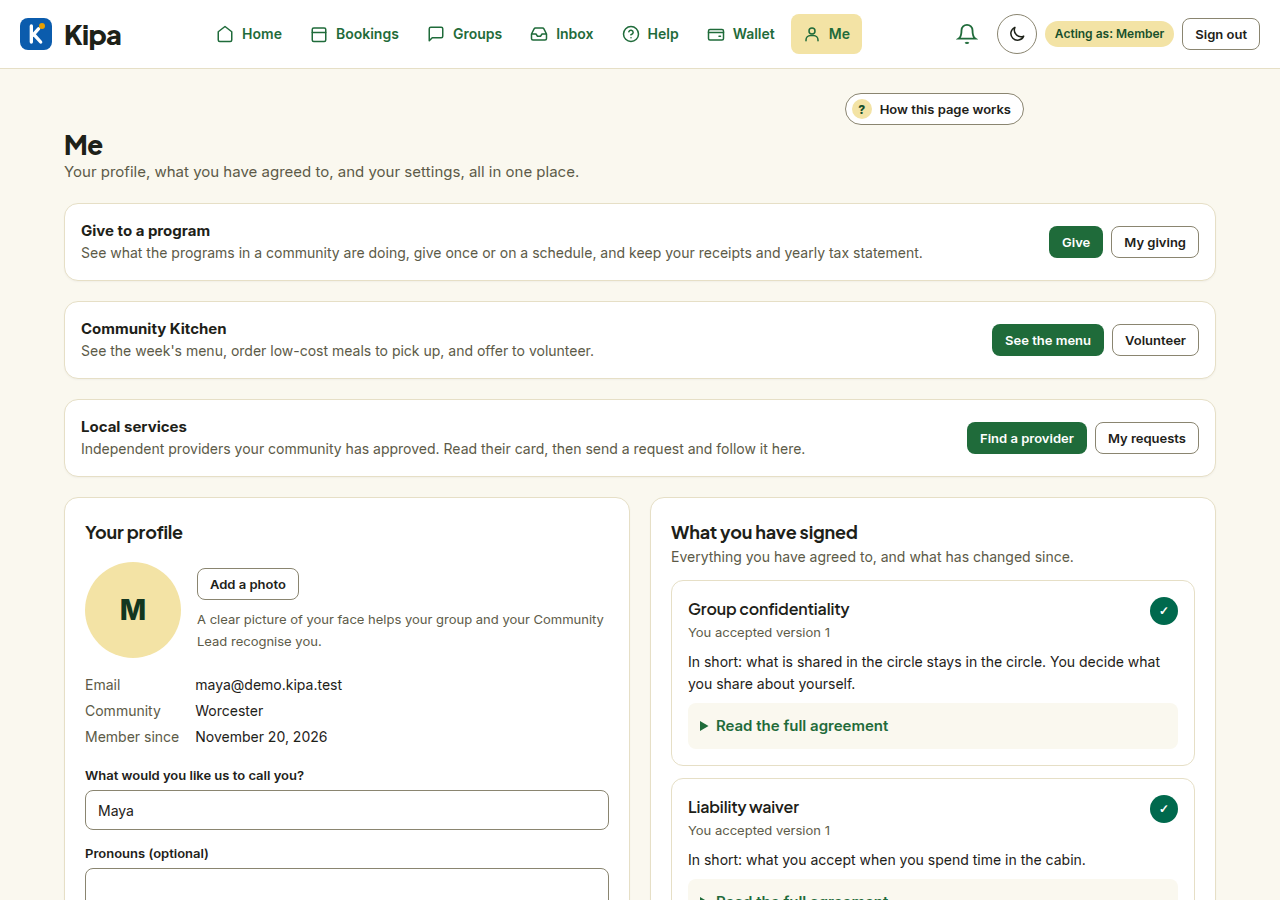
- Photo and details. Add a photo (it shows round), your pronouns, phone and street. Press Save.
- Emergency contact. Add a person to call. It says On file to a Community Lead and cannot be opened by them. A Program Manager can open it only after giving a reason, and the opening is recorded.
- Agreements. Read anything you have signed. If one changed, tick the box and Accept. After a change to the main agreements you must accept before the app opens.
- Language. Choose English, Español or Português.
- Your data. Download my data gives you a file of your own data. Close my account (type
DELETE) closes it in 14 days; you can cancel in that time. An account with a balance or an upcoming booking cannot be closed.
Working without a signal#
On a phone you can install Kipa from the browser menu. If you lose signal while checking in (door or wellbeing), the app keeps your check-in and sends it when you are online again. Other signed-in pages show an offline page; no private data is stored on the phone.
If something goes wrong#
| You see | What to do |
|---|---|
| You cannot add money | Accept the wallet terms first |
| You cannot book a time | It is taken: use the waitlist |
| "Ordering opens on Monday" | Meals for next week open on Monday of that week |
| You cannot close your account | Spend or withdraw your balance, or cancel upcoming bookings |
| The staff screens say no access | They are for staff only. That is expected |