Guide for partners and service providers#
For a person at a partner company (a cleaner, a landlord, a vendor): tickets, agreements, invoices, what you are owed, and your service listing.
A partner is a company that works with Kipa under an agreement: a cleaning company, a church that rents a room, a repair shop. You sign in with a password (no wallet, no member screens). You land on the partner overview.
What you can do#
- See tickets sent to your team, work them, and mark them done.
- Raise a ticket for the community.
- See your agreements.
- Send invoices and see what you are owed.
- Advertise as a local service provider to members.
You see only your own company's items. You never see members' contact details.
First time: finish onboarding#
If your company was invited as a Vendor, the invitation email takes you through: organization details (legal name, EIN, the services you provide and where), a short profile, your W-9, your certificate of insurance with its expiry date, and agreements to accept. After the Community Lead and approvers decide, your account becomes active. Until then you cannot reach other screens. See Getting started.
Overview#
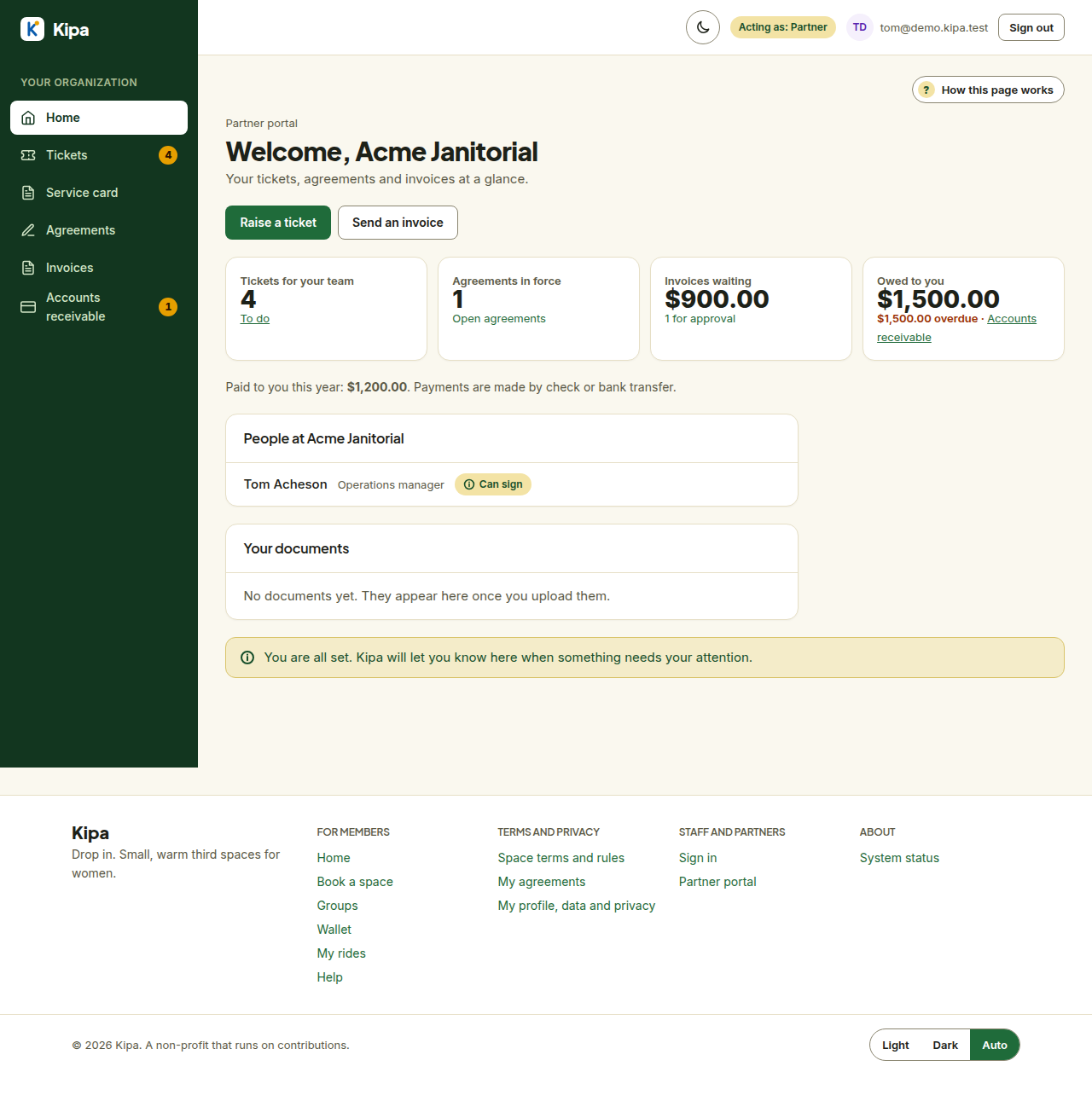
The overview says "Welcome, " and your company name, with the number of tickets for your team, agreements in force, invoices waiting, and what is owed (with any overdue amount). There are buttons to raise a ticket and to send an invoice.
Tickets#
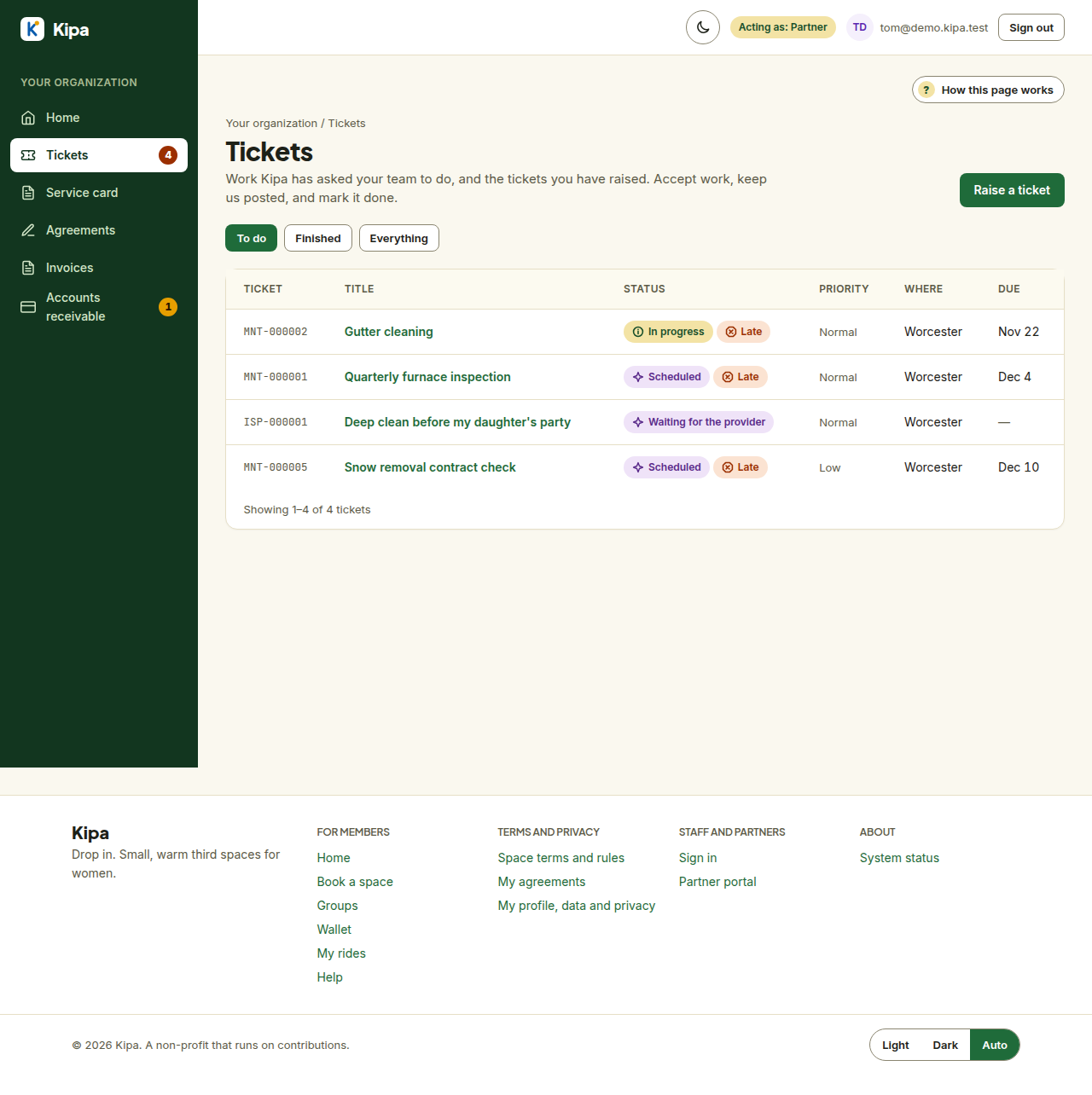
- Open Tickets and open one assigned to your team.
- Accept it, work it and mark it done. The community's lead sees each change.
- To raise your own ticket, press New ticket: choose the community, what it is about, the details and how urgent. It opens as a ticket in the Community Lead's queue. You are never shown who else is on it.
Agreements#
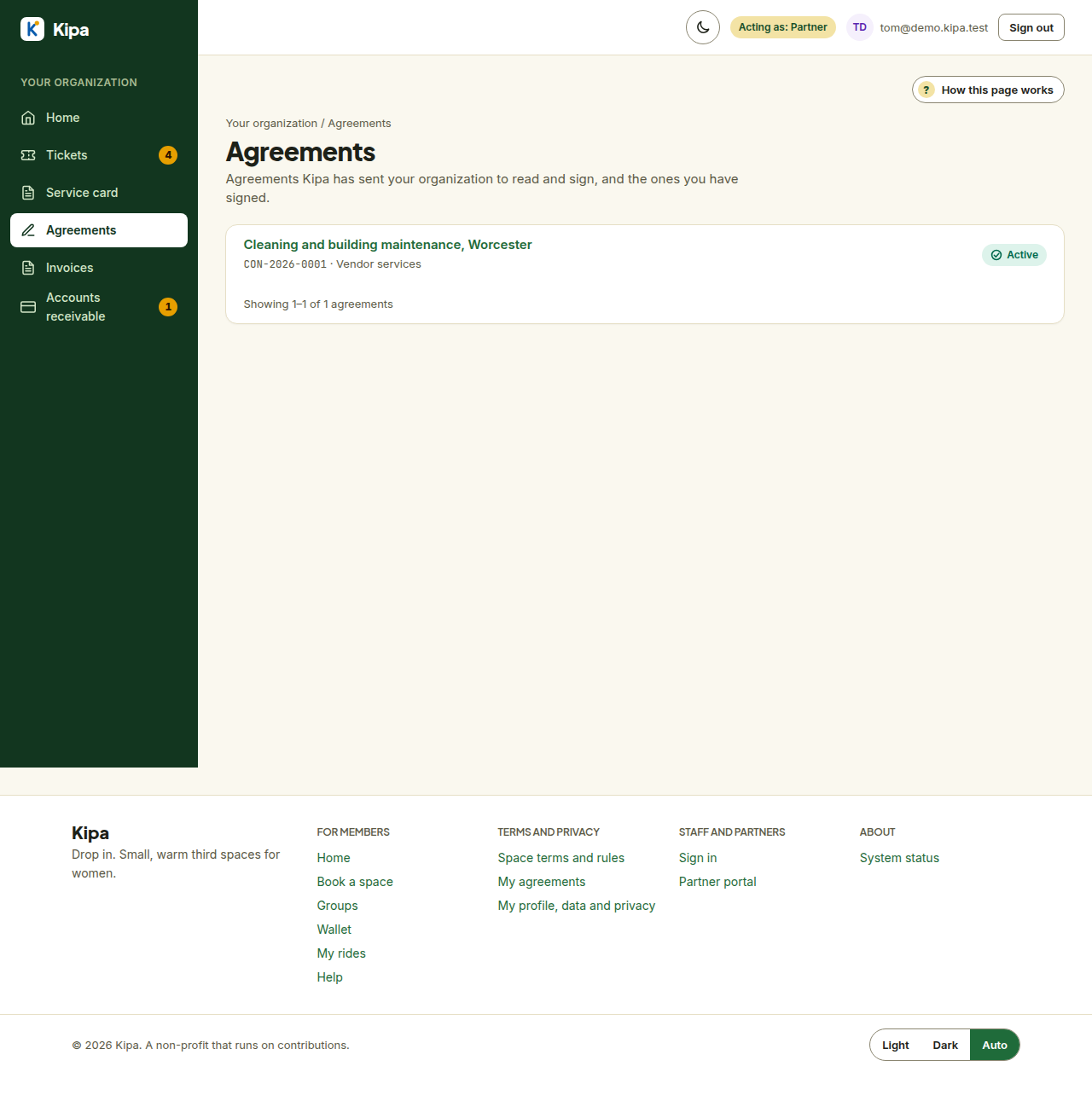
Agreements lists your company's contracts only. To sign a new one you open the signing link, pass the email check, type your name, tick the consent box and optionally draw your mark.
Invoices#
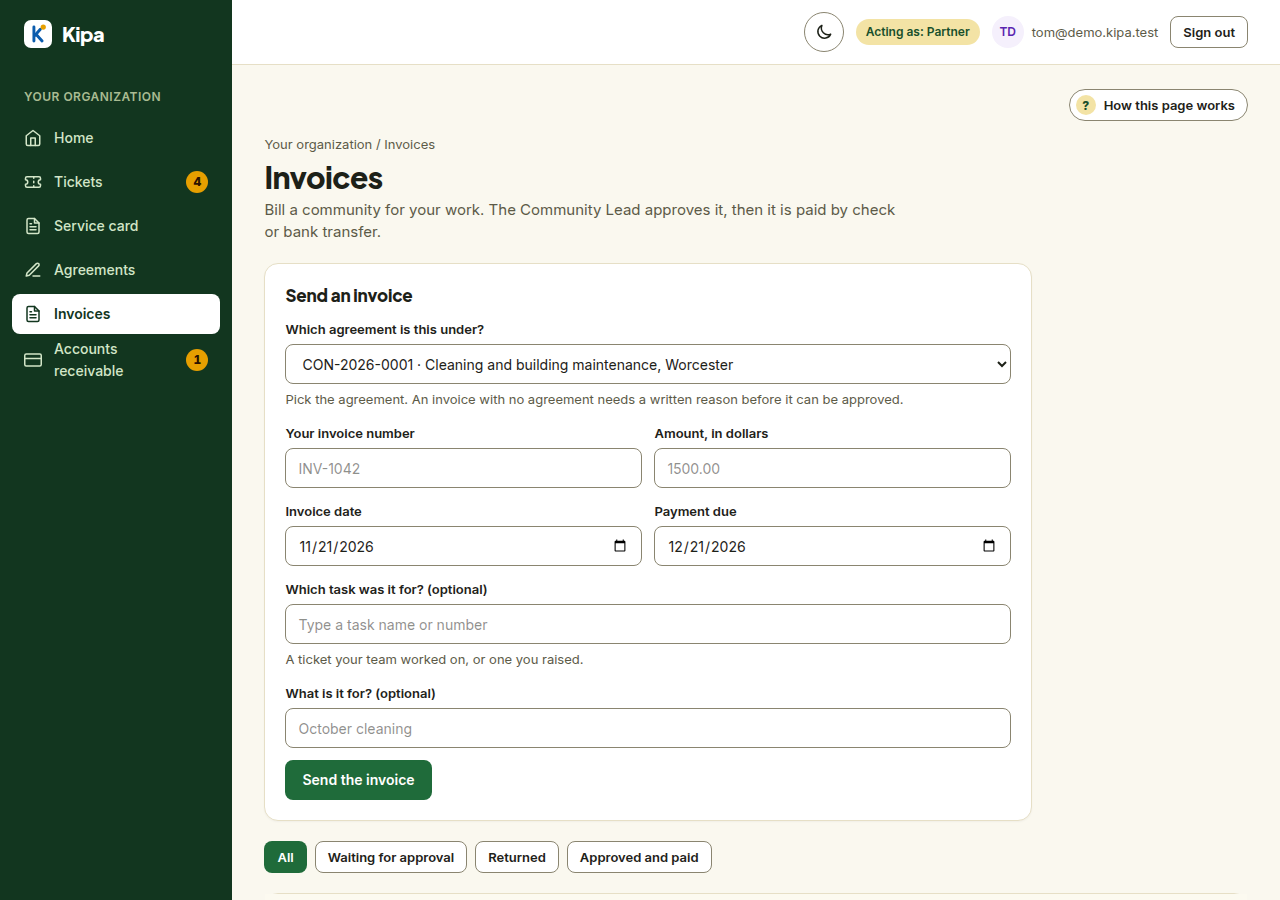
- Press Send an invoice and choose the agreement and the community. Only communities you work for are offered.
- It shows in Invoices as Waiting for approval. A Community Lead approves it under Approvals. An invoice with no agreement needs a written reason.
- If an invoice is Returned, you see the reason and are told.
Accounts receivable#
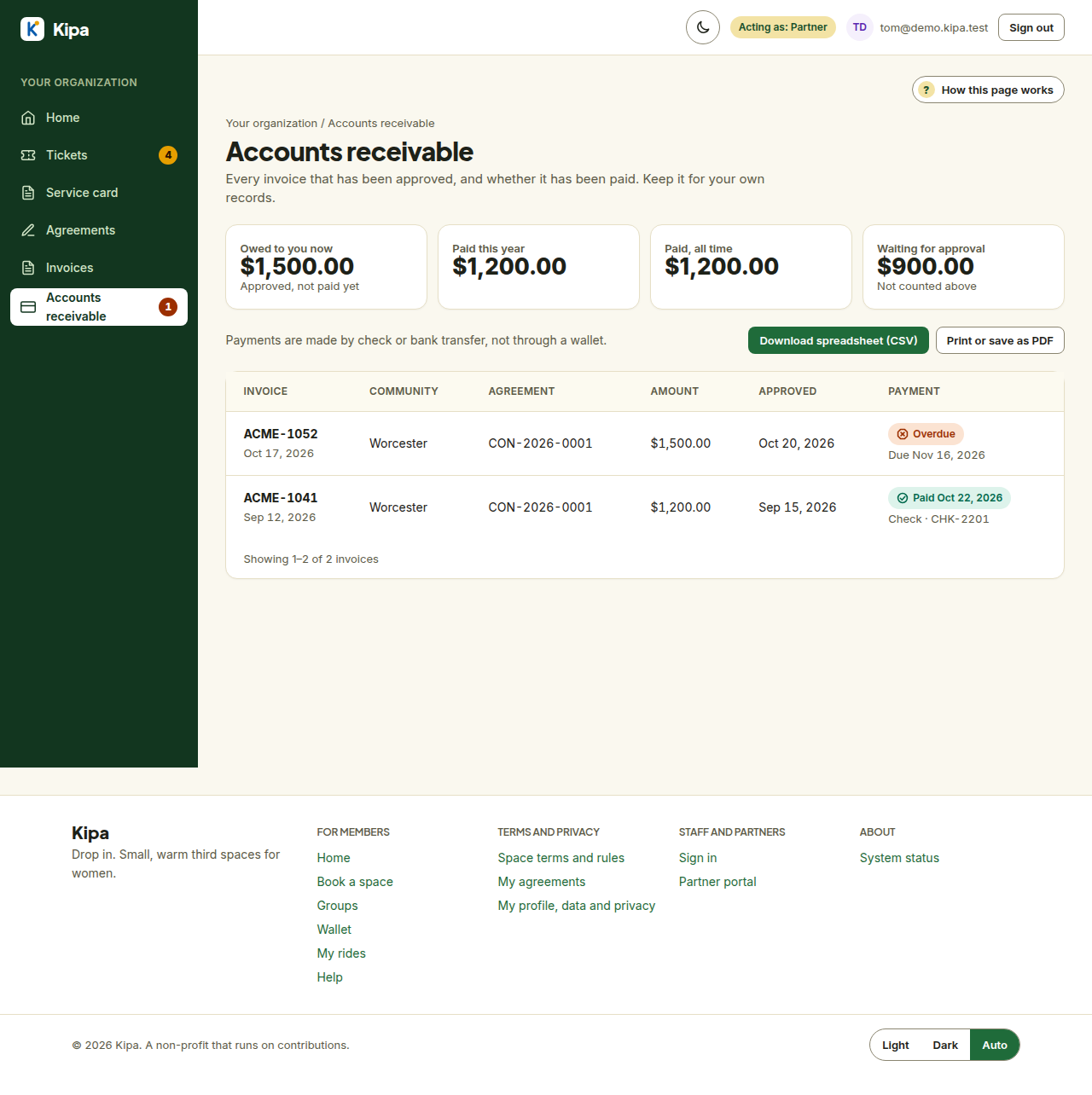
Accounts receivable shows totals (owed now, paid this year, paid all time, waiting) and every approved invoice with Paid (date, method, reference) or To be paid / Overdue (due date), a page at a time. Download the spreadsheet for a CSV of approved and paid invoices, or print a clean view with no menu. You are paid by check or bank transfer, never through a wallet.
Your service listing#
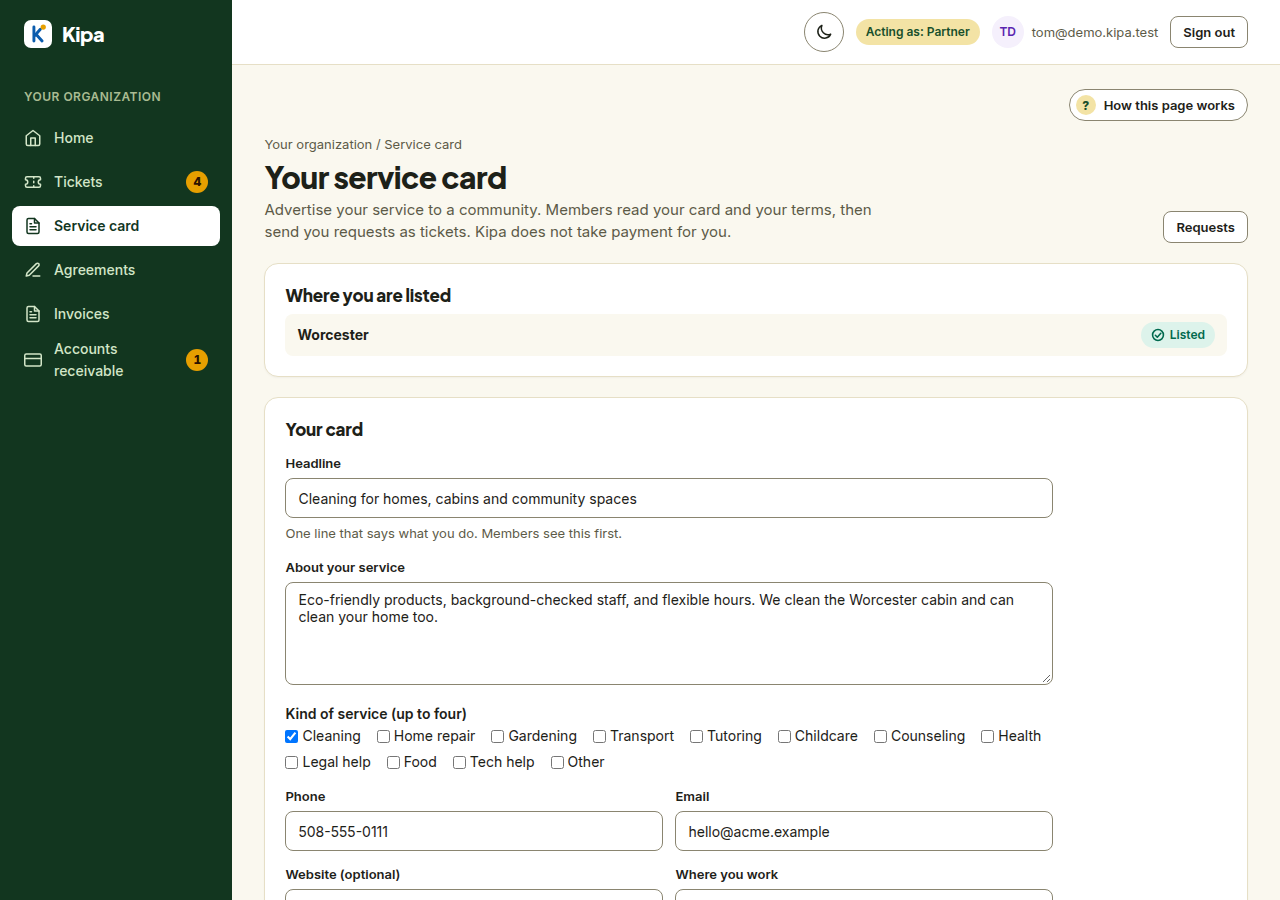
You can appear to members as a local service provider.
- Service card. Write a headline, a description, the kind of service and a phone. A short headline or no contact is refused. Press Save.
- Terms. Write your own terms and publish them.
- Where you are listed. Tick the communities and press Ask to be listed. It shows Waiting for approval. Without a finished card or published terms, it is refused.
- The Program Manager reads your card and terms and approves it. Then members of that community see your card under Local services.
- Members send a request after accepting your terms. It arrives as a ticket in your queue: ask for more information, accept, or complete it (a decline needs a reason). The member is told each time.
If something goes wrong#
| You see | What to do |
|---|---|
| You cannot open a staff or admin page | Partners only see partner screens |
| You cannot send an invoice for a community | You can only invoice communities you have an agreement with |
| "Ask to be listed" is refused | Finish the card and publish your terms first |