Guide for the Executive Director and the Board#
Network growth, the pilot decision, contracts, releases of restricted funds, reports, and board meetings, minutes, resolutions and votes.
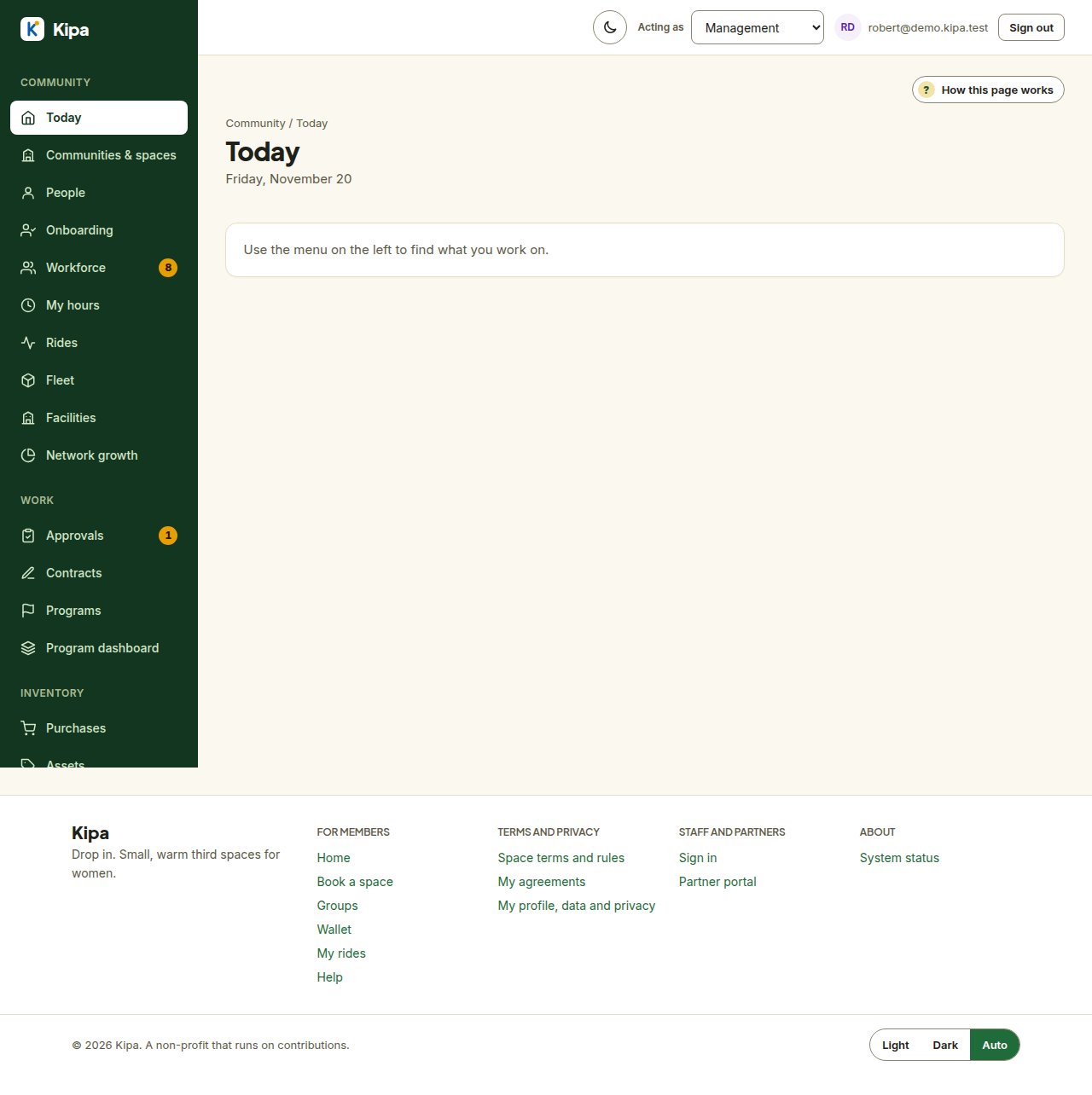
The Executive Director (ED) leads Kipa across communities and is the second person for the biggest decisions. A Board Viewer can read what the board publishes. Both sign in with a password and an authenticator code; the ED lands on Management.
What you can do#
- Approve contracts and releases of restricted funds.
- Record the pilot decision and grow the network.
- Run board meetings: minutes, resolutions, votes and published reports.
- Read reports.
Approvals#
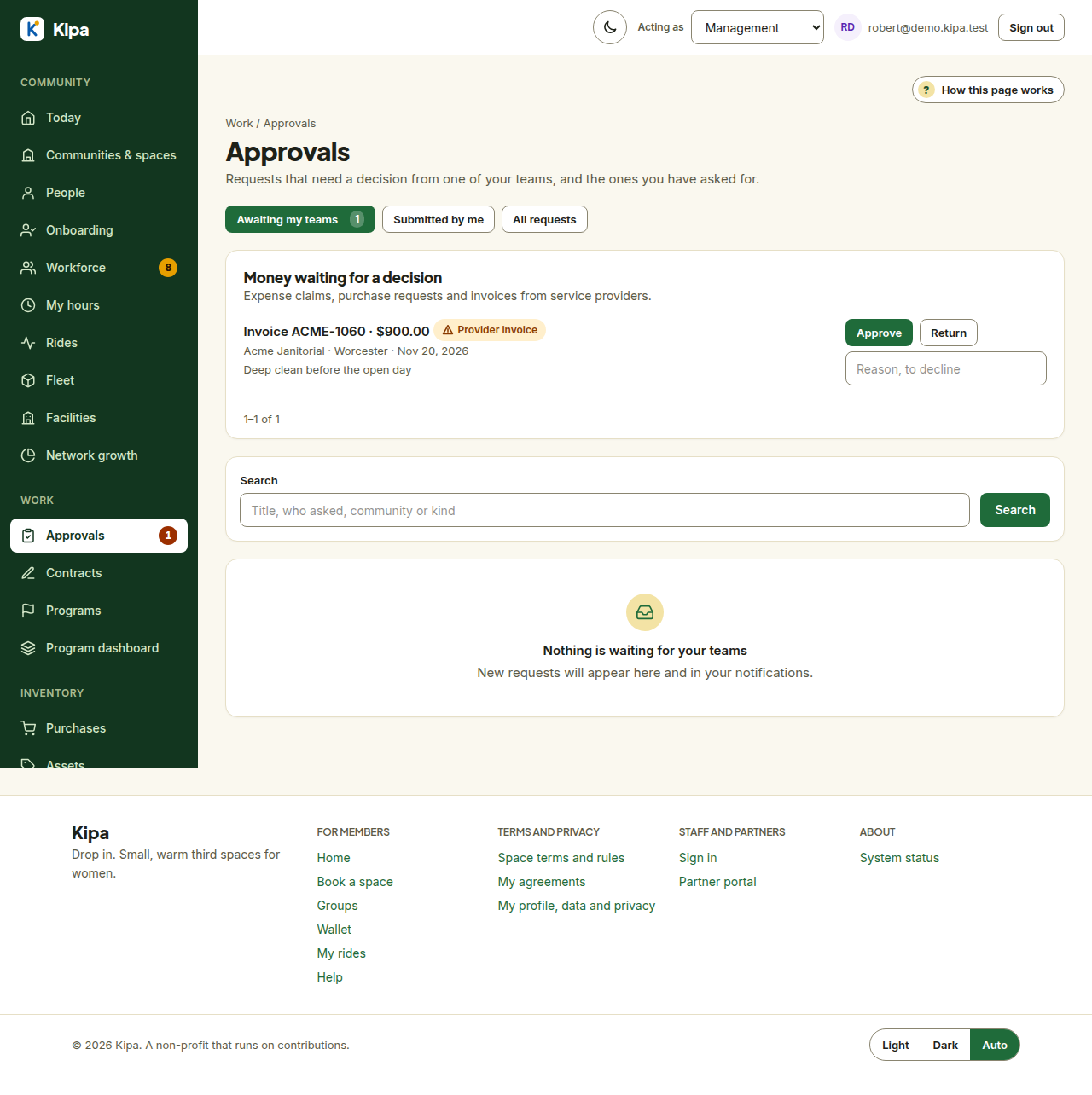
You approve things others cannot: a contract that is ready for signing, a release of restricted funds (requested by Finance), and other chains your team is part of. You cannot approve your own request.
Contracts#
A Community Lead or Program Manager drafts a contract, saves versions and compares them. You approve it, and it becomes ready to sign. The other party opens a signing link, passes an email check, types their name, ticks consent and may draw a mark. You then countersign and download the signed PDF; the certificate page shows the drawn mark next to the typed name. A signed contract shows as a commitment on the cost center.
Network growth and the pilot decision#
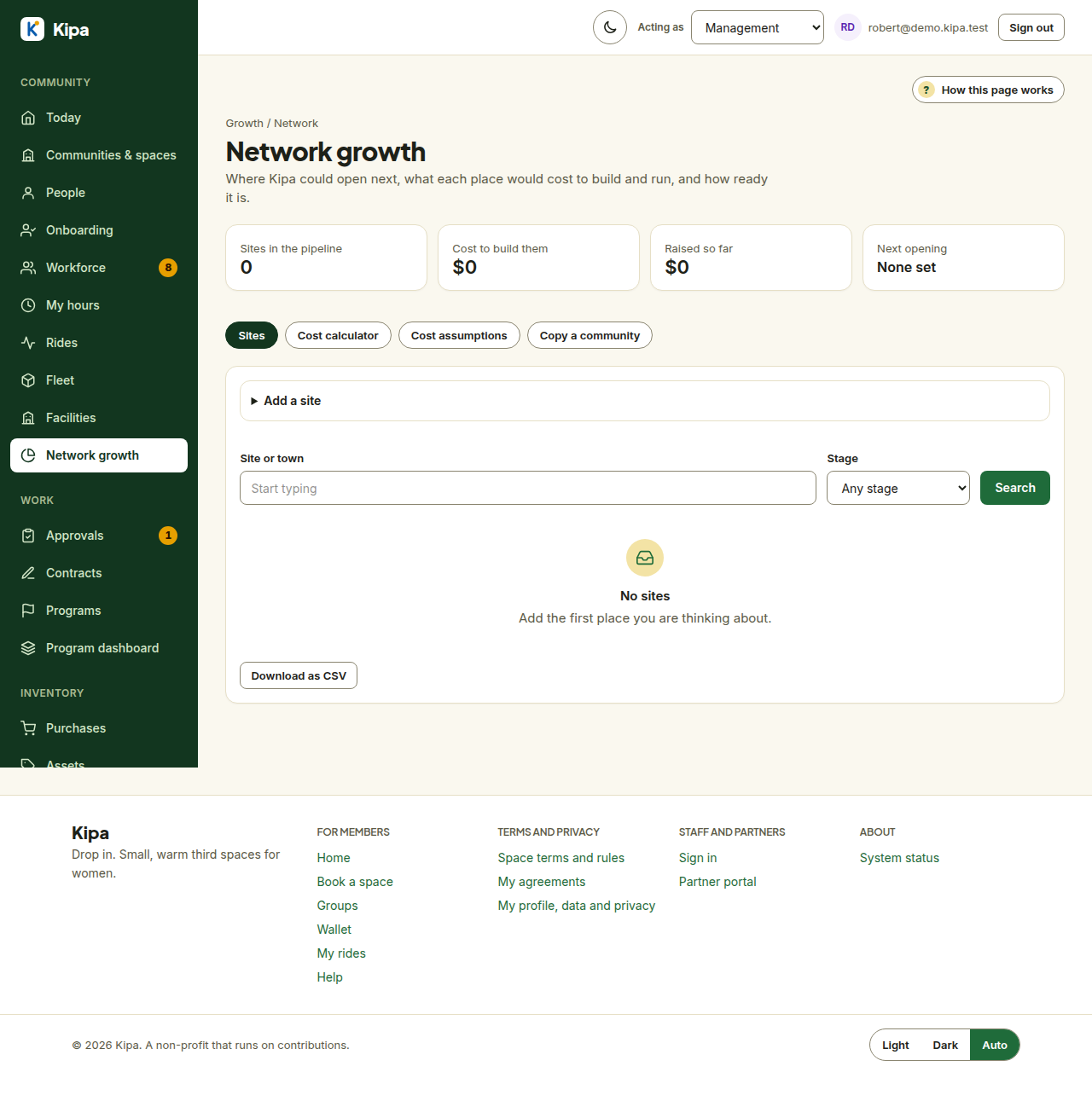
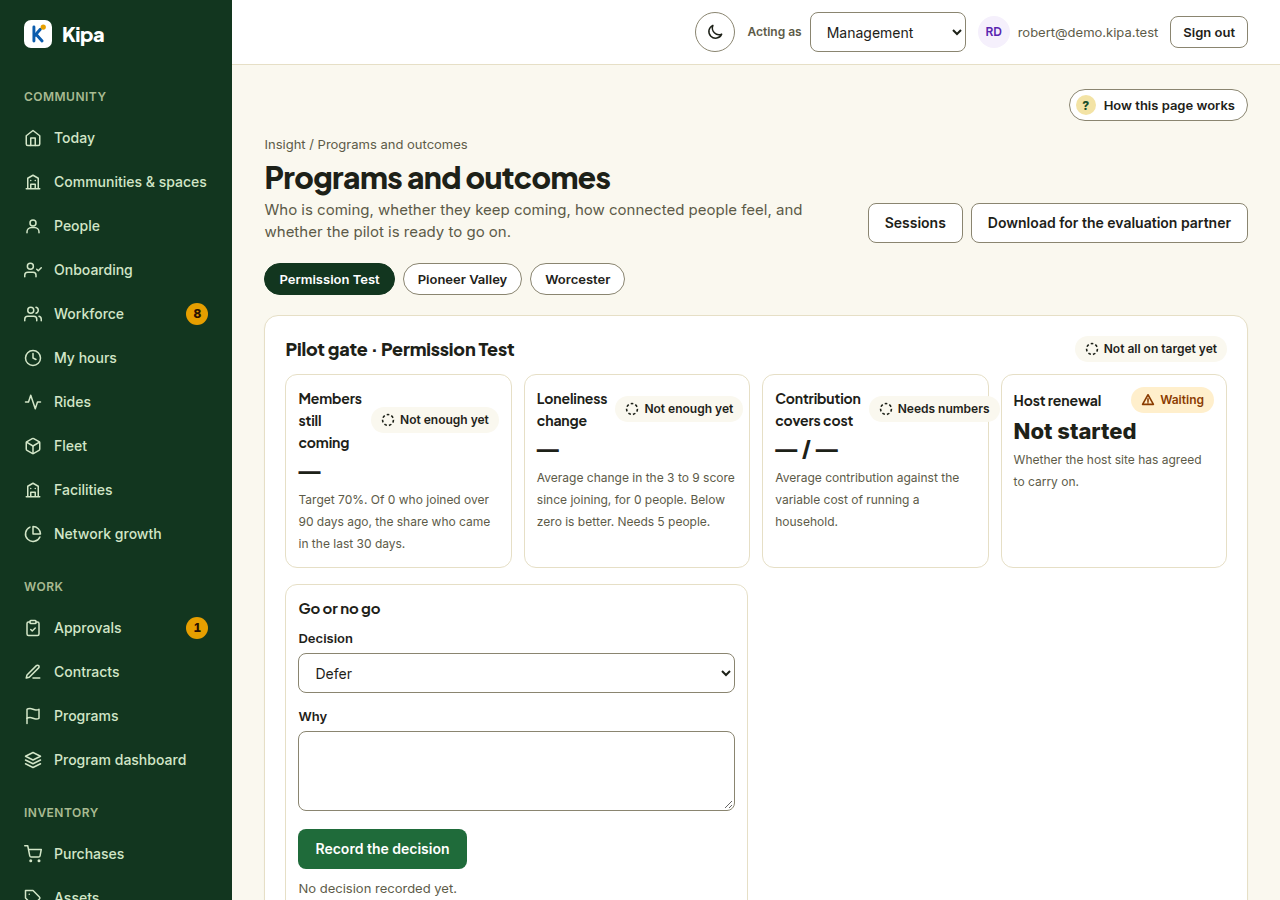
Add sites, tick readiness checks, add costs, copy a community and mark a site open. See Program Managers for each step. Record the pilot decision under outcomes: it is saved with the date and your name.
Board#
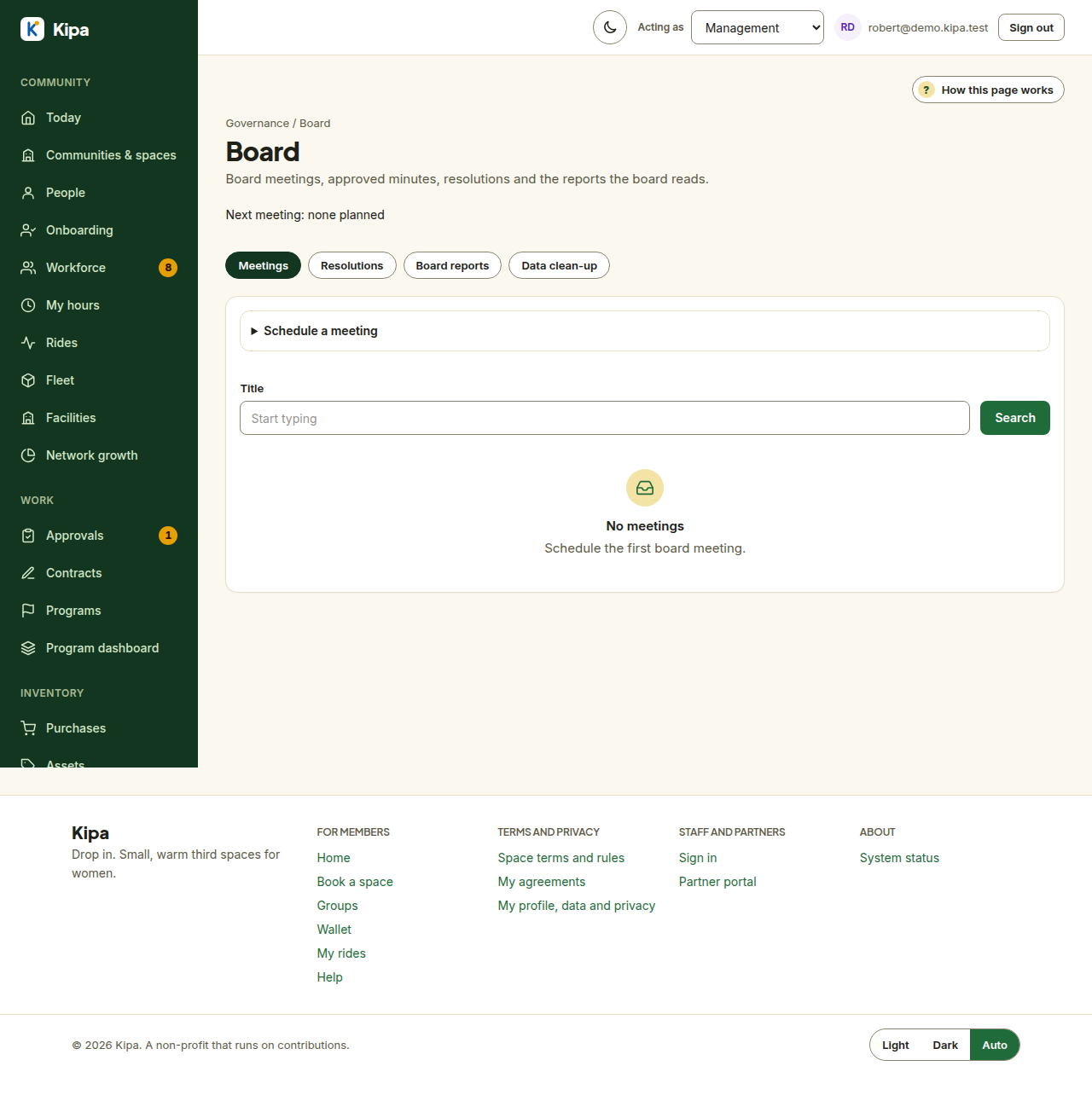
- Schedule a meeting and write the minutes. Minutes are drafts. A second person approves them; the writer cannot approve their own.
- Add a resolution. Board members vote; the result is counted and the resolution number is unique.
- Publish a report to the board. The Board Viewer can read it, and later edits do not change what was published.
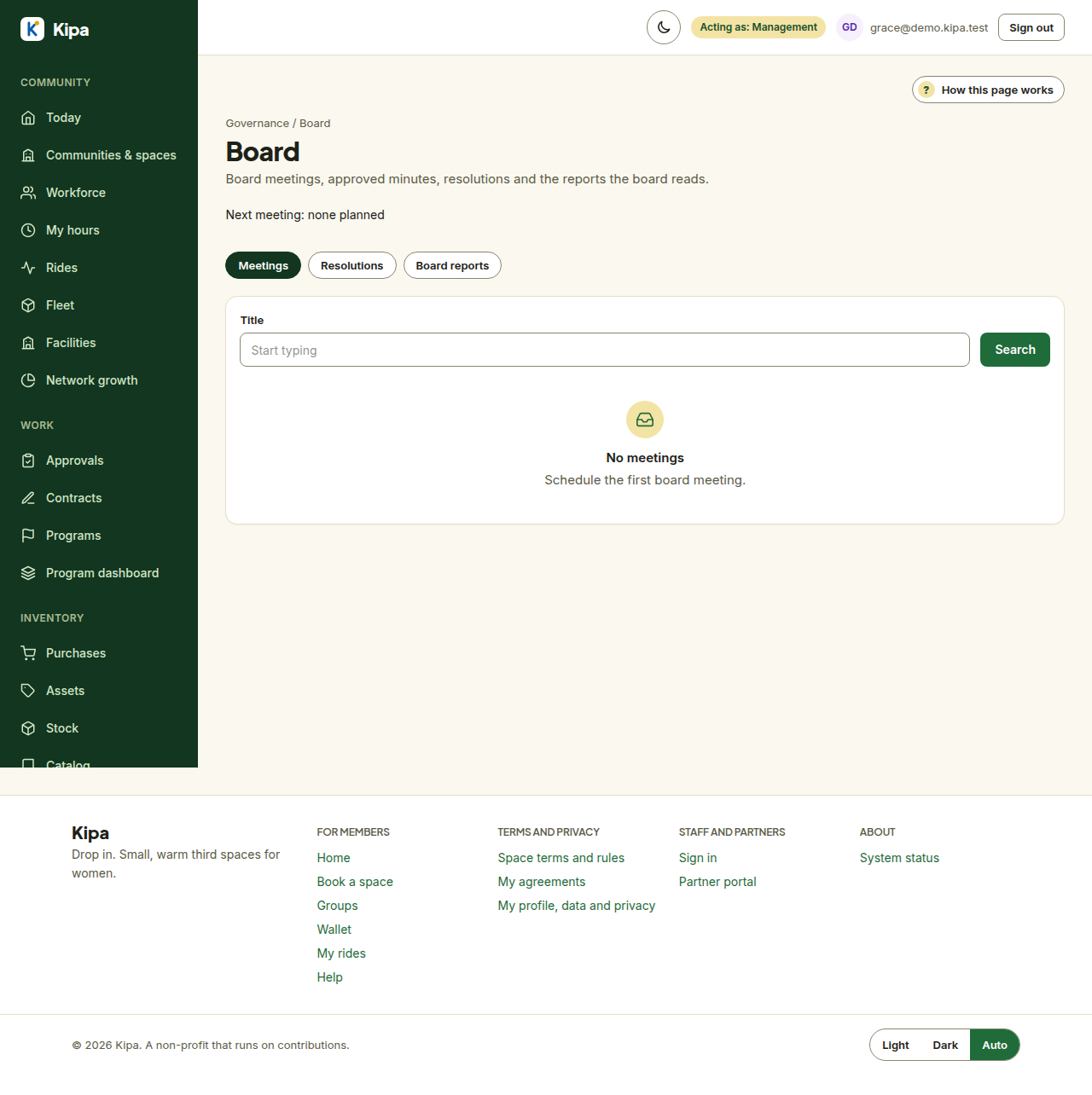
A Board Viewer sees the Board pages read-only.
Reports#
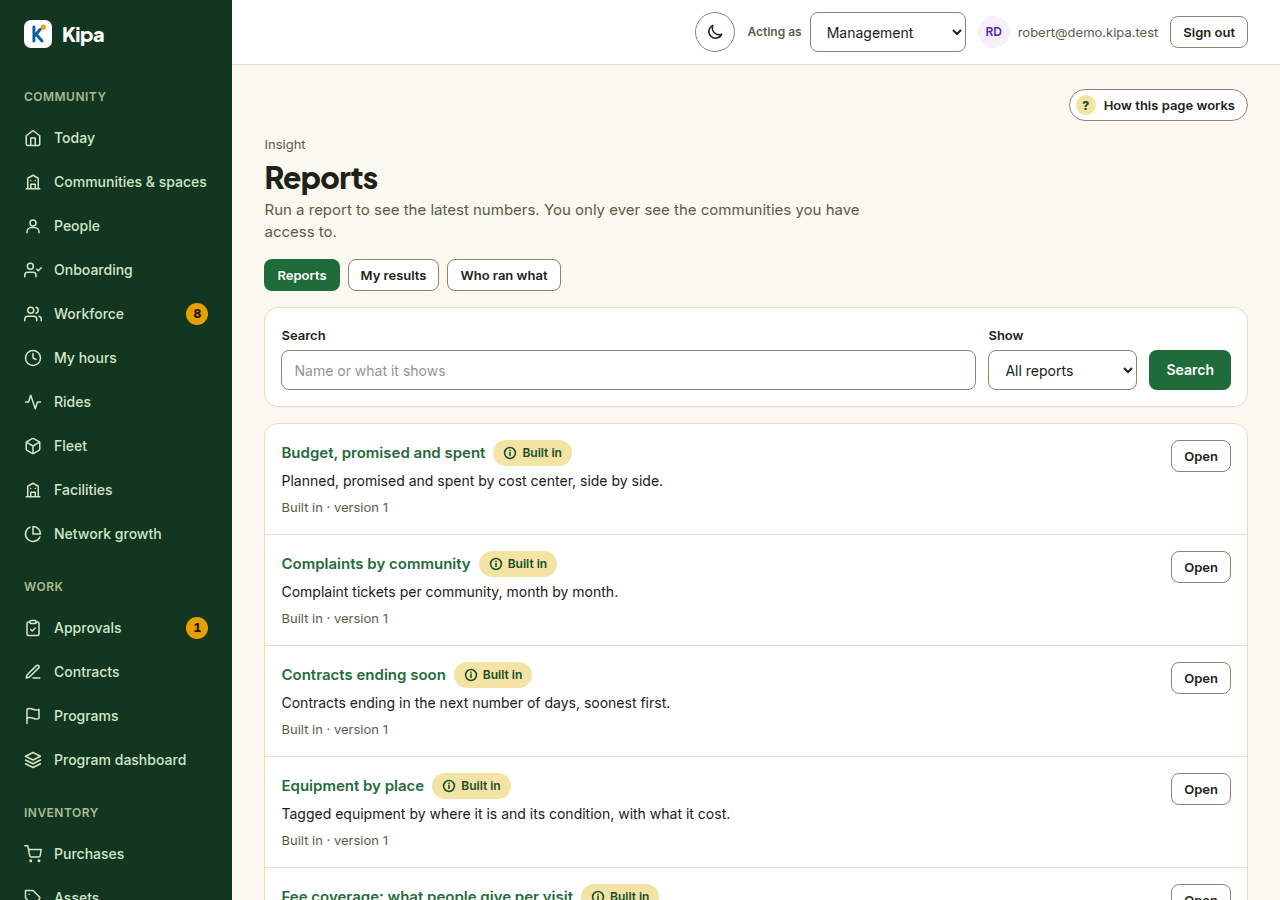
Run a built-in report and download it. A System Admin builds and shares new reports.
If something goes wrong#
| You see | What to do |
|---|---|
| You cannot approve your own request | Another person must |
| A board page is read-only | Board Viewers cannot change anything |