Guide for Community Leads#
Running a community day to day: requests to join, onboarding, people, bookings, tickets, approvals, rides, programs, giving and reports.
A Community Lead looks after one community (for example Worcester). You see and change only your own community. You sign in with a password and an authenticator code, and you land on Today.
What you can do#
- Decide who joins your community and see their onboarding through.
- Look after people, spaces, bookings, groups and messages.
- Work tickets, and approve other people's requests.
- Manage rides, donor programs, workforce, facilities and stock.
- Run built-in reports.
Today#
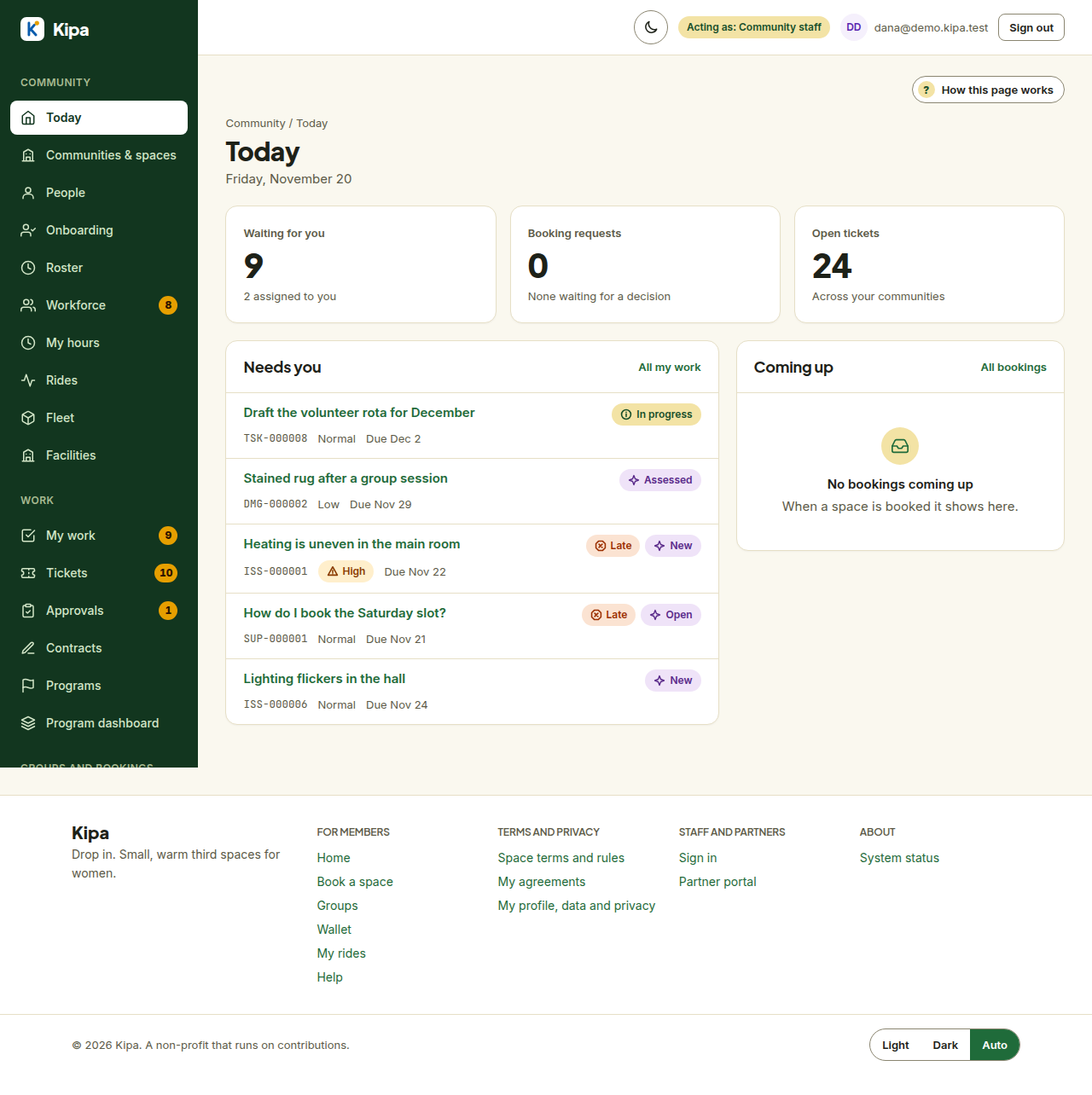
Today shows today's items for your community. A number beside a menu item (for example Onboarding or Approvals) is the count of things waiting for you.
Requests to join and onboarding#
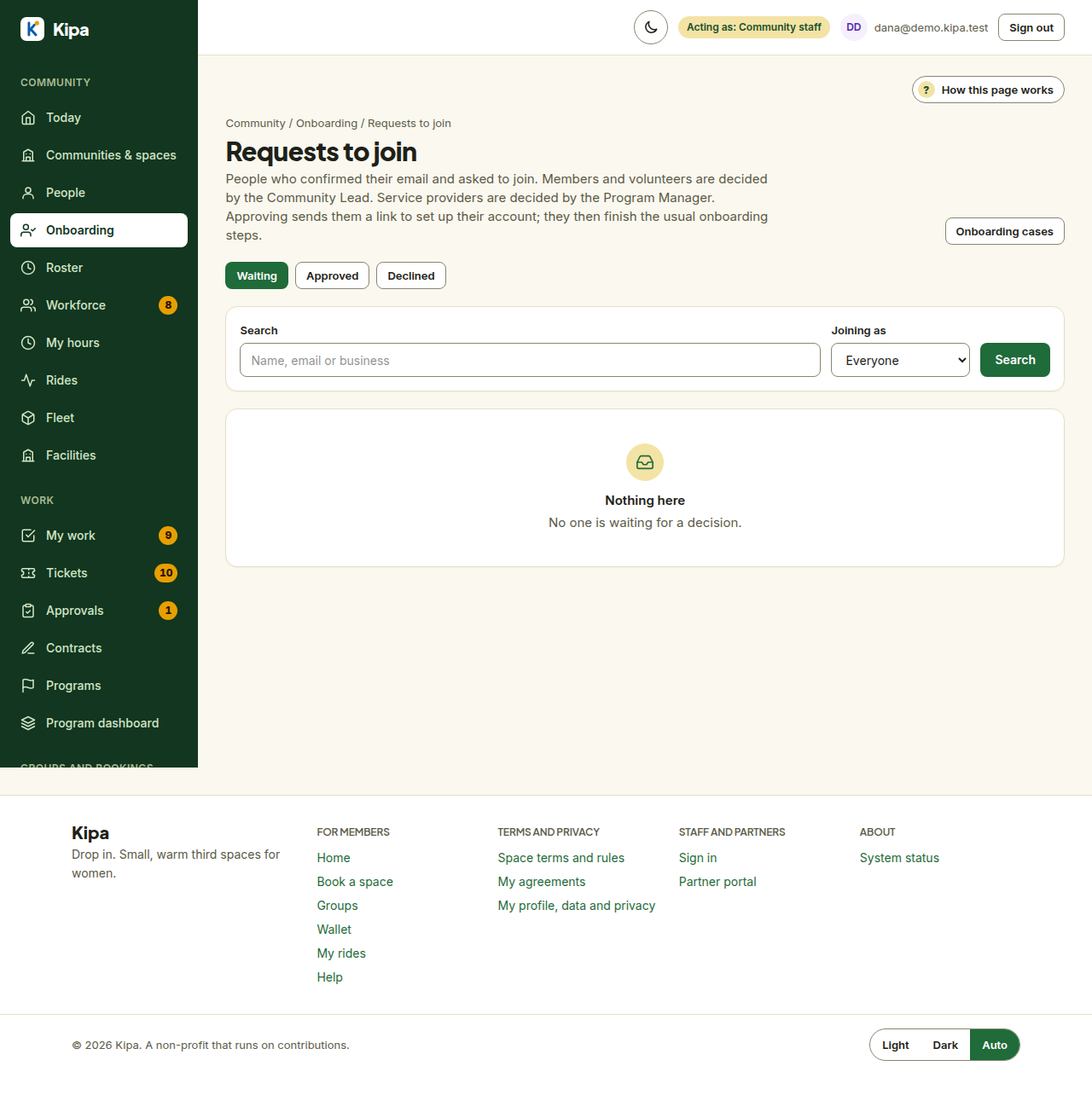
Decide a request to join#
- When someone asks to join, a yellow notice on Onboarding says "1 person has asked to join and is waiting for your decision" with a link. The Onboarding menu item also shows a number.
- Open Requests to join. Under Waiting you see each person, marked Member or Volunteer. You can search by name.
- Approve it. The person gets an email "Good news: you can join" with a set-up link, the request moves to Approved, and a new onboarding case appears. Or Decline with a reason: the person is emailed the reason, and no account is made.
- You cannot decide a request made with your own email: someone else must.
A Local service provider request goes to the Program Manager, not to you. The Program Manager can also see member requests.
Invite someone#
Under Onboarding (or People) press Invite someone, choose who (a member, volunteer, employee or vendor), type their email, and send. The invitation shows as waiting until they use it. You can Resend email or Cancel invitation.
Review an onboarding case#
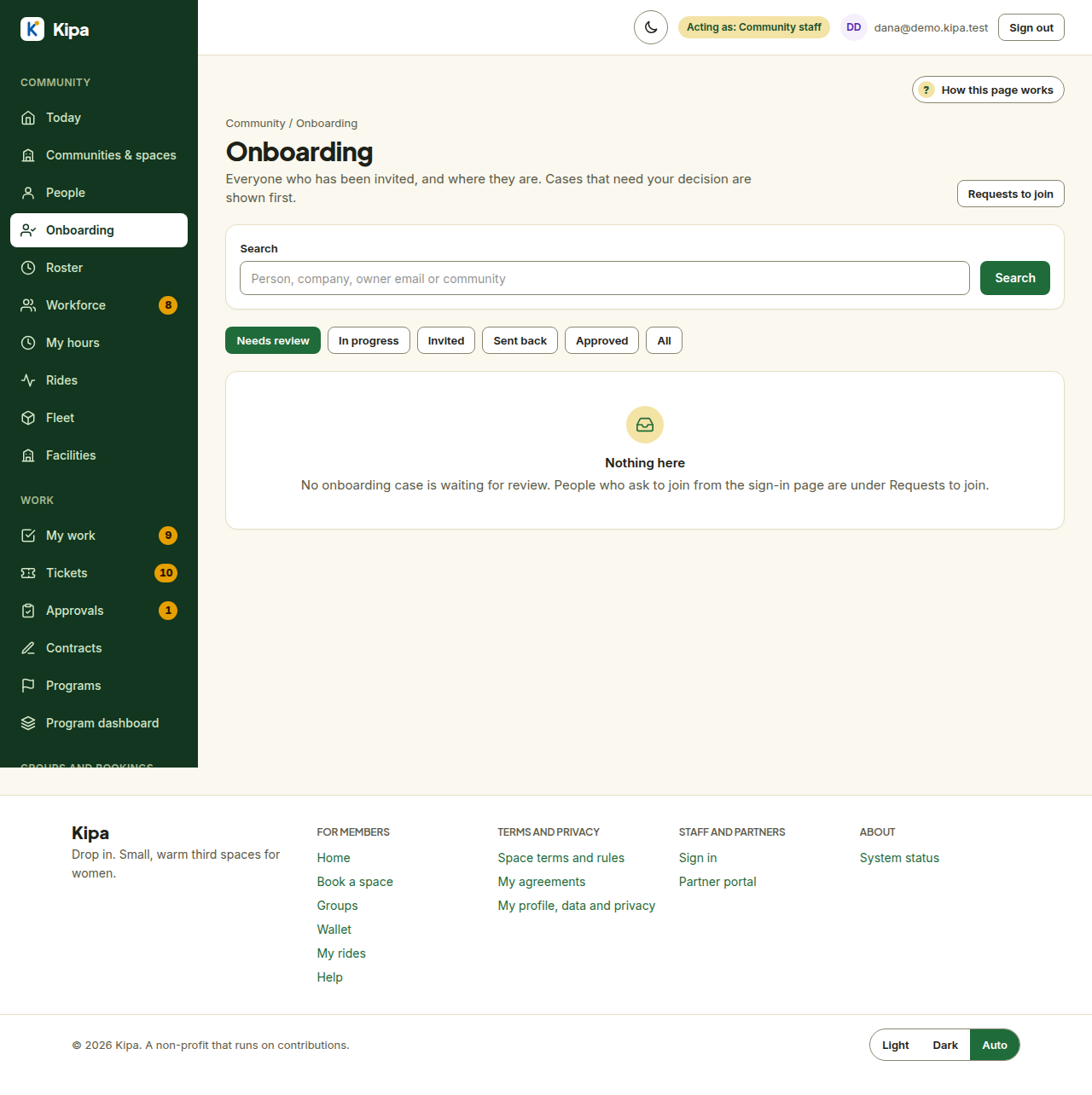
- Open Onboarding and open a case. Each step shows its status: Not started, Waiting for review, Accepted or Sent back.
- Open what the person uploaded. Uploaded documents lists each file (for example the W-9, a certificate of insurance or a licence) with its upload date and expiry date. Press Open file to read it. Only people who can read this case can open its files.
- Accept each step that is correct, or send it back with a note saying what to fix. Required steps must be accepted before the case can move on.
- In Decision, press Approve (or Send back to the person with a reason of at least a few words).
Not everyone onboarding needs the same steps. A member's steps are about their details and agreements; a volunteer's may add a background check and training; a vendor's include organization details, a W-9 and a certificate of insurance.
People#
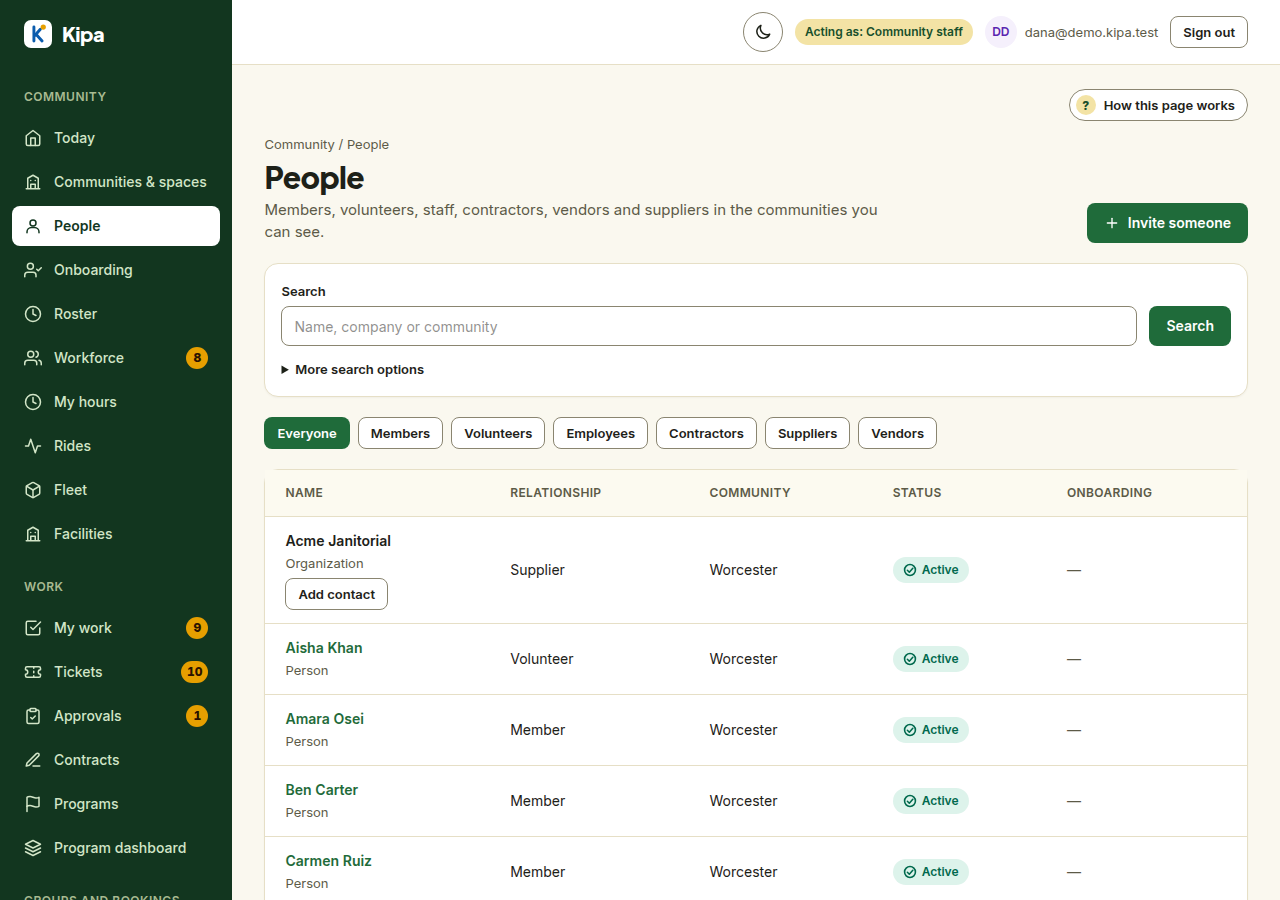
Open People and search by name. Click a person to open their card: photo or initials, name, pronouns, status, where they belong, the last four digits of a phone and a street name (never a member's full number or email), their groups, which agreements they signed and their onboarding status.
The Roster shows icons only (touch, photo): no reasons are shown.
Your community and its spaces#
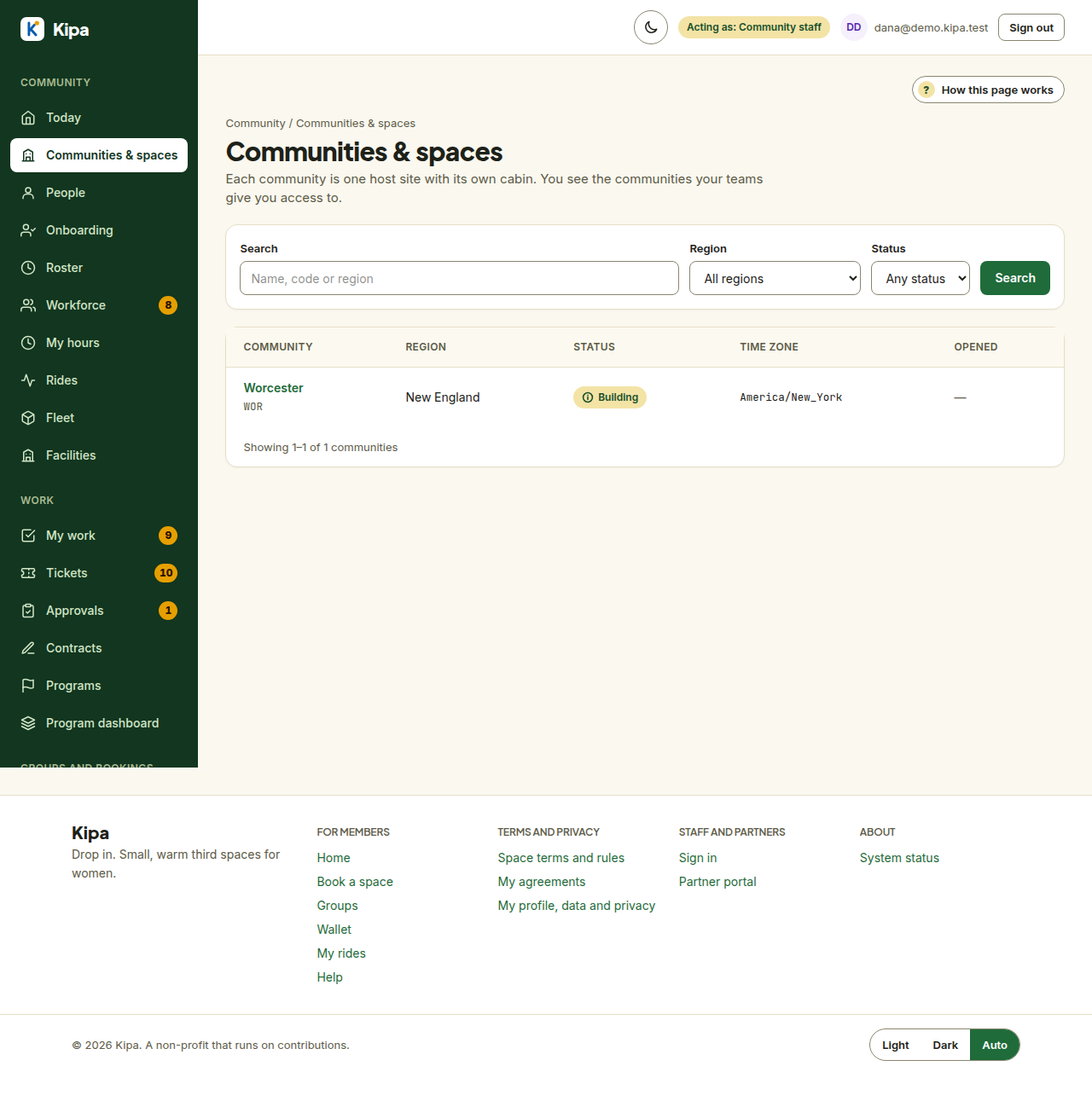
Open Communities & spaces. You can edit your community, change its status (for example Open, Paused) and each space's status (Active, Under maintenance, Retired). Only valid next steps are offered. A space under maintenance cannot be booked. You can add a street address to a space; it then shows on the space's card. You cannot create a new community or open another community's page.
Bookings#
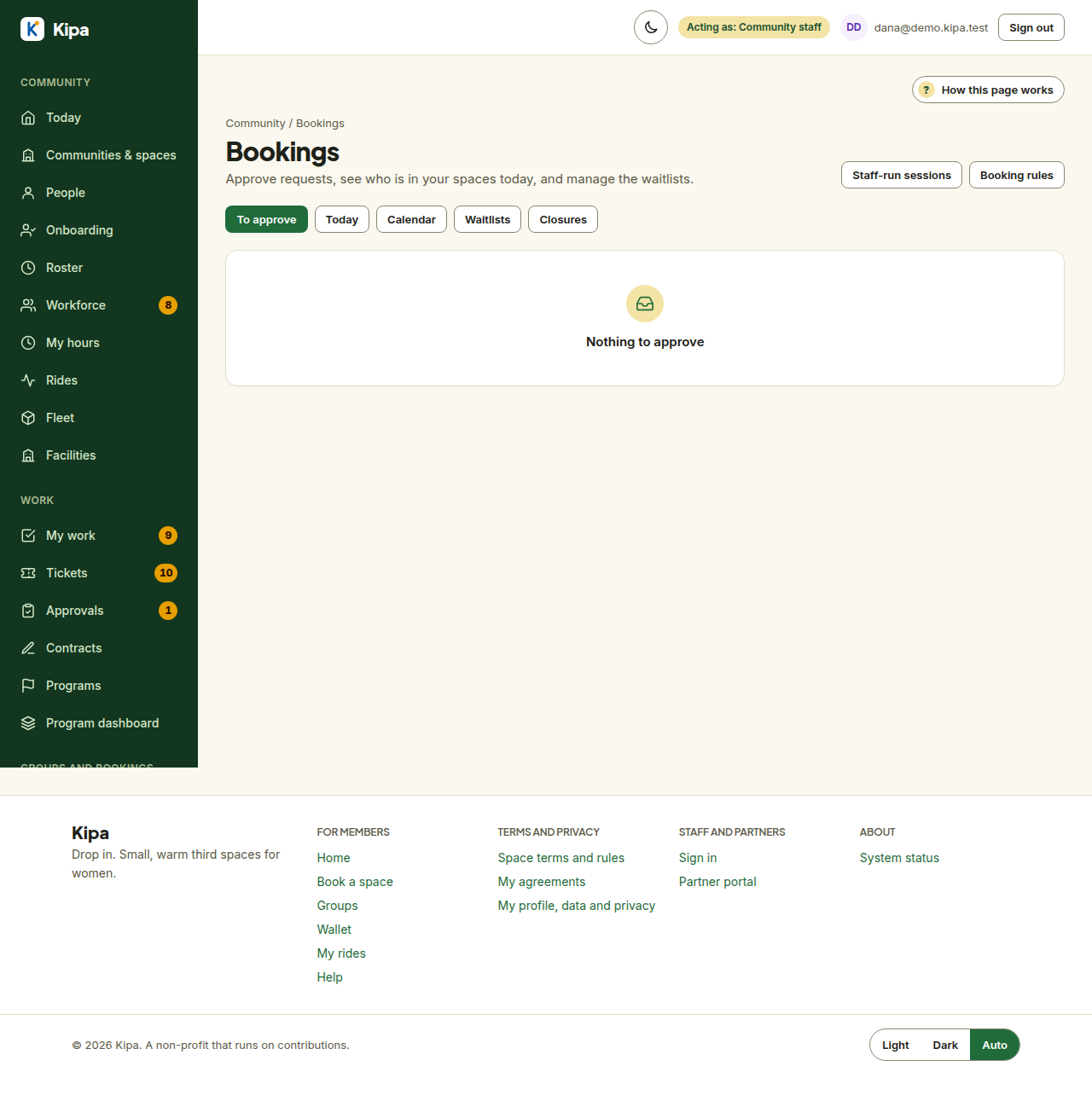
Bookings lists each visit with its status. Under Rules you set each space's pricing, such as a Flat fee (the space page then shows "$X per booking"). Print a visit's roll-call sheet for the door. Check-in is also possible on the visit.
Groups and messages#
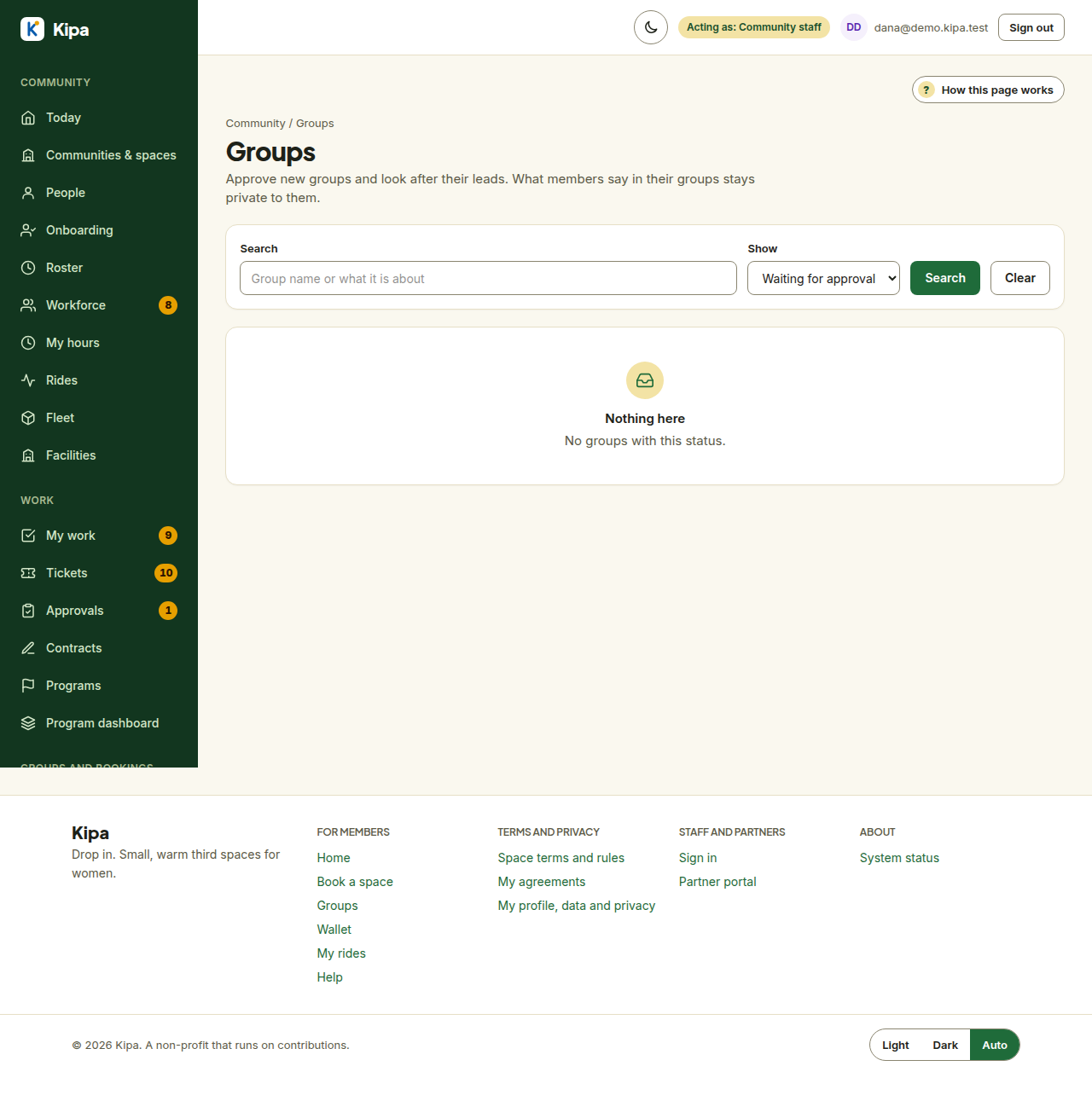
- Groups. Members propose groups. You Approve one and it goes live; members can then join.
- Messages. Write to members of a group or to everyone in a list; they can reply to you. Staff cannot read a members' group chat.
Tickets and approvals#
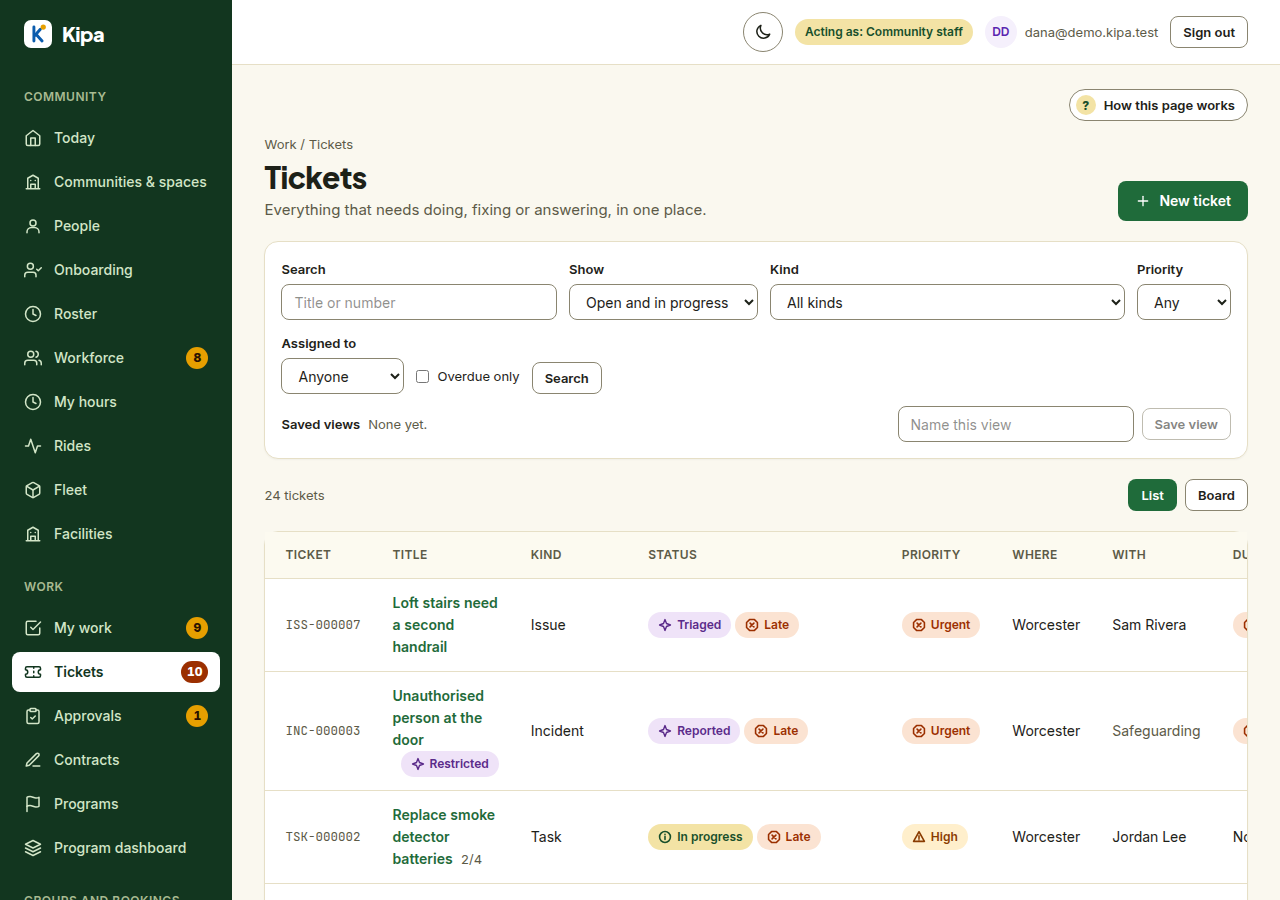
Tickets work as in the Employees guide, and you can also hand a ticket to a partner team.
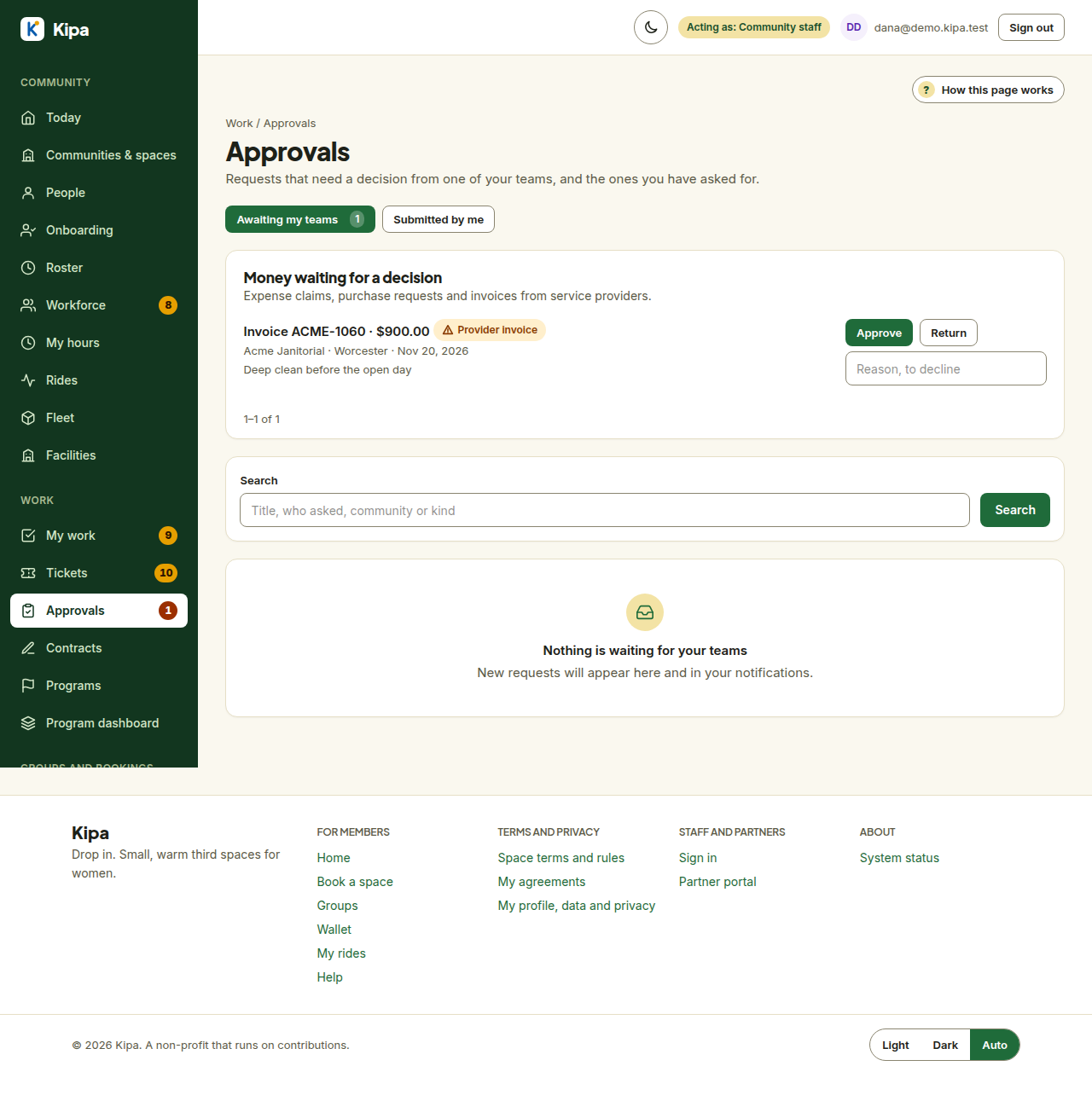
Approvals shows what waits for your team. At the top is Money waiting for a decision: expense claims, purchase requests and invoices from providers. Open one to see who asked, the task and the amount. You can approve, deny, ask a question or request changes. You cannot approve your own request.
If a request goes through several steps, it moves to the next team when you approve. The person who asked is told once when it is finally approved.
Payments and cash#
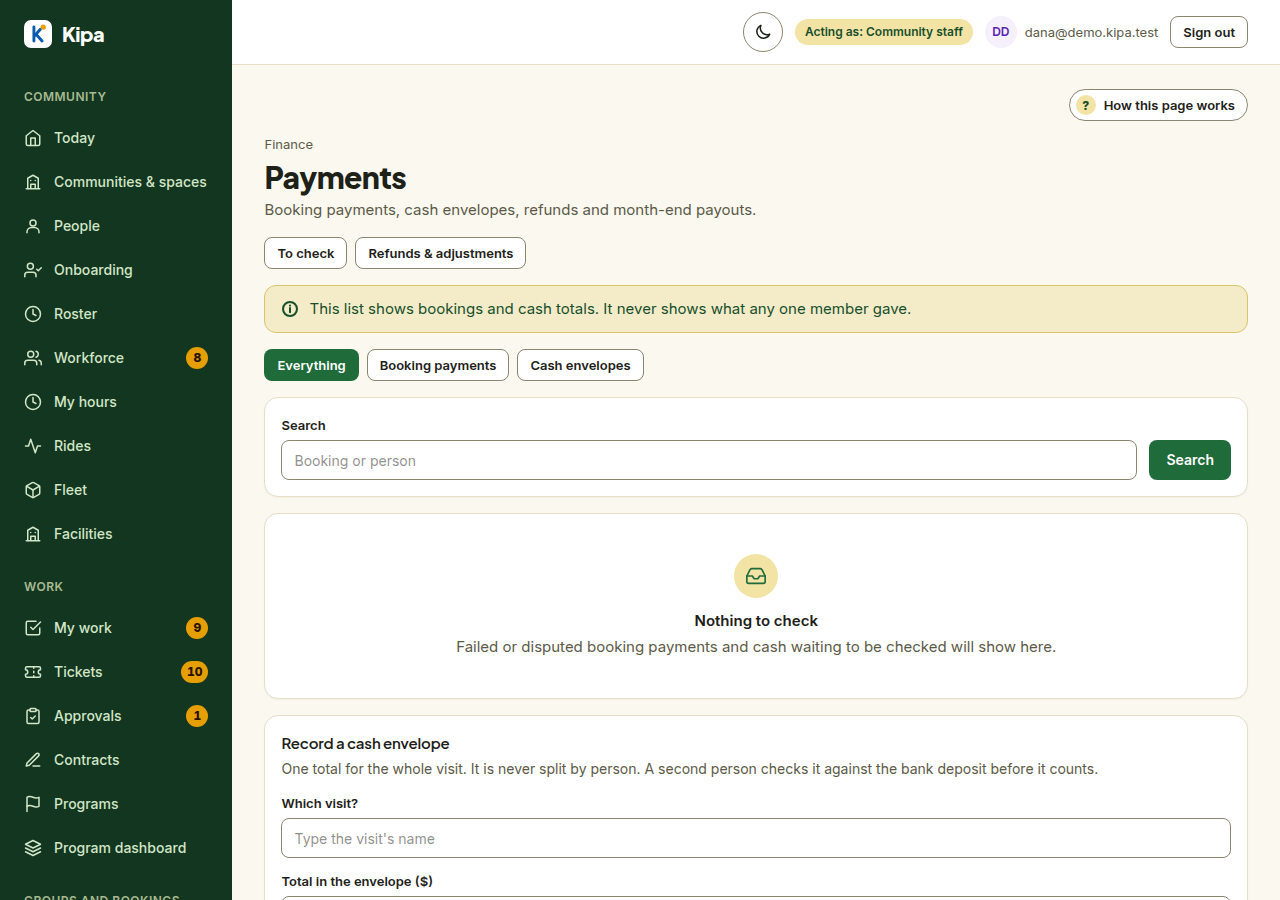
In Payments you can waive a fee with a reason and record a cash envelope: count the cash in front of a second person, write the total (never names) and record it. A different person (Finance or a Program Manager) checks the bank deposit. Only then does it count as money earned. See Finance for what happens next.
Rides#
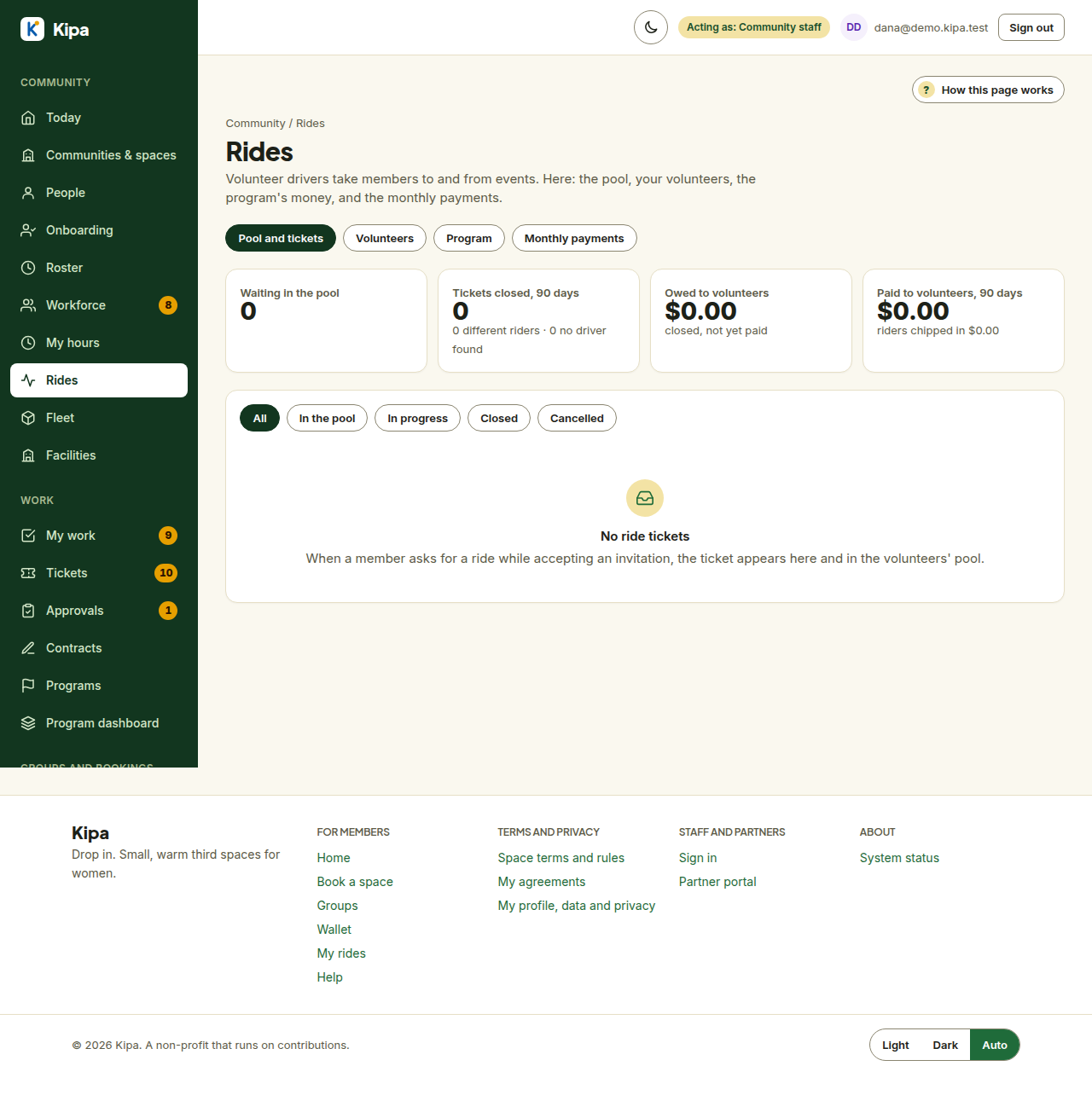
- Volunteers. Recruit a member or volunteer as a driver, and see their closed tickets and free days. Pause a driver who should not drive for a while.
- Pool and tickets. Every ticket with rider, from and to, status and driver. You can give a ticket to a driver or a partner, or cancel it.
- Program. Choose the rides cost center, set the rider chip-in and the volunteer flat rate. Paying volunteers stays with the Program Manager and Finance.
Donor programs#
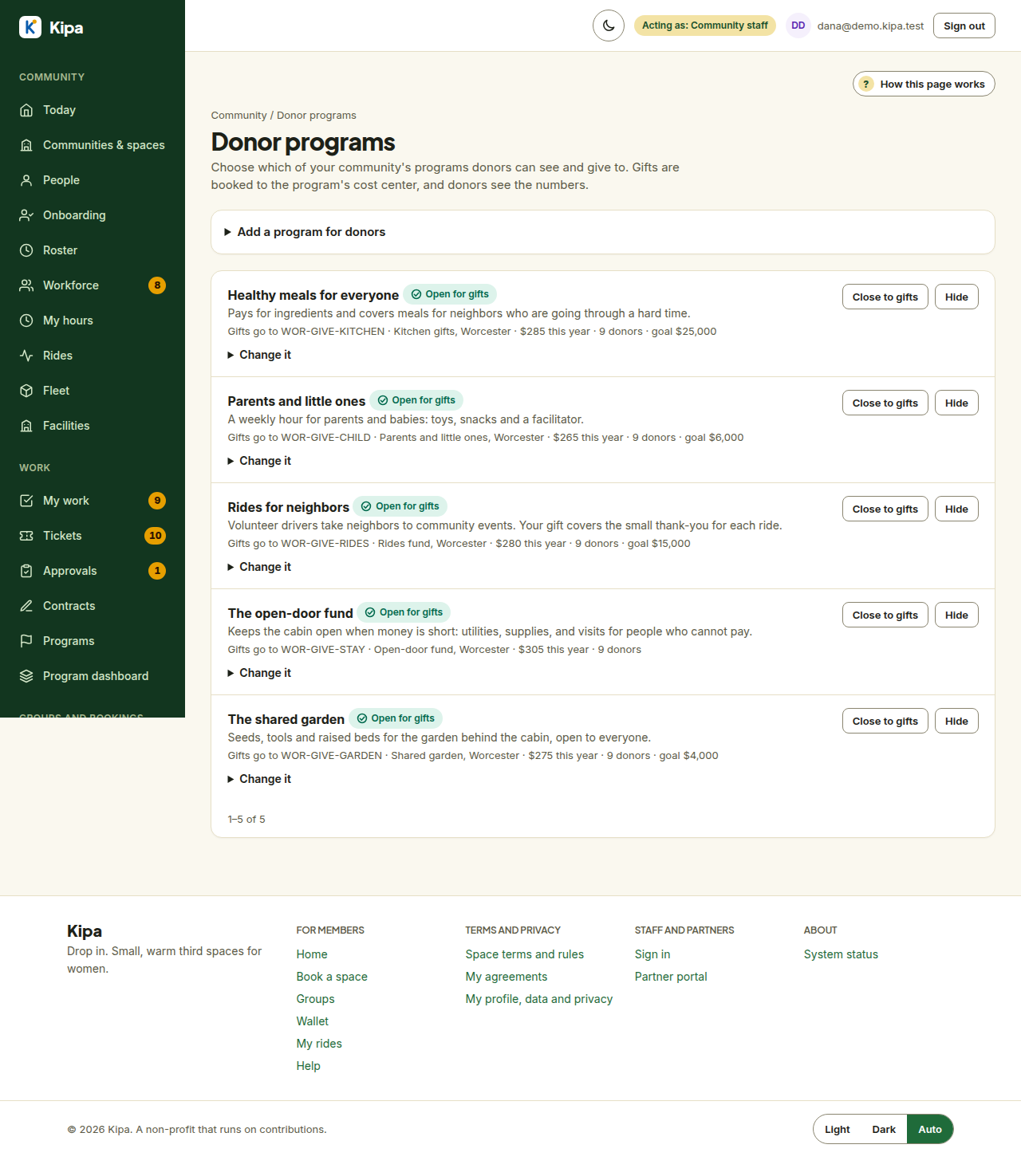
Open Donor programs, press Add a program: name, one sentence, a cost center, a goal and an impact line. It is Hidden at first. Press Publish for donors and it shows as Open for gifts. Close to gifts removes it from the donors' list; repeat gifts to it pause. A hidden program is "not found" to a visitor.
Workforce, facilities and stock#
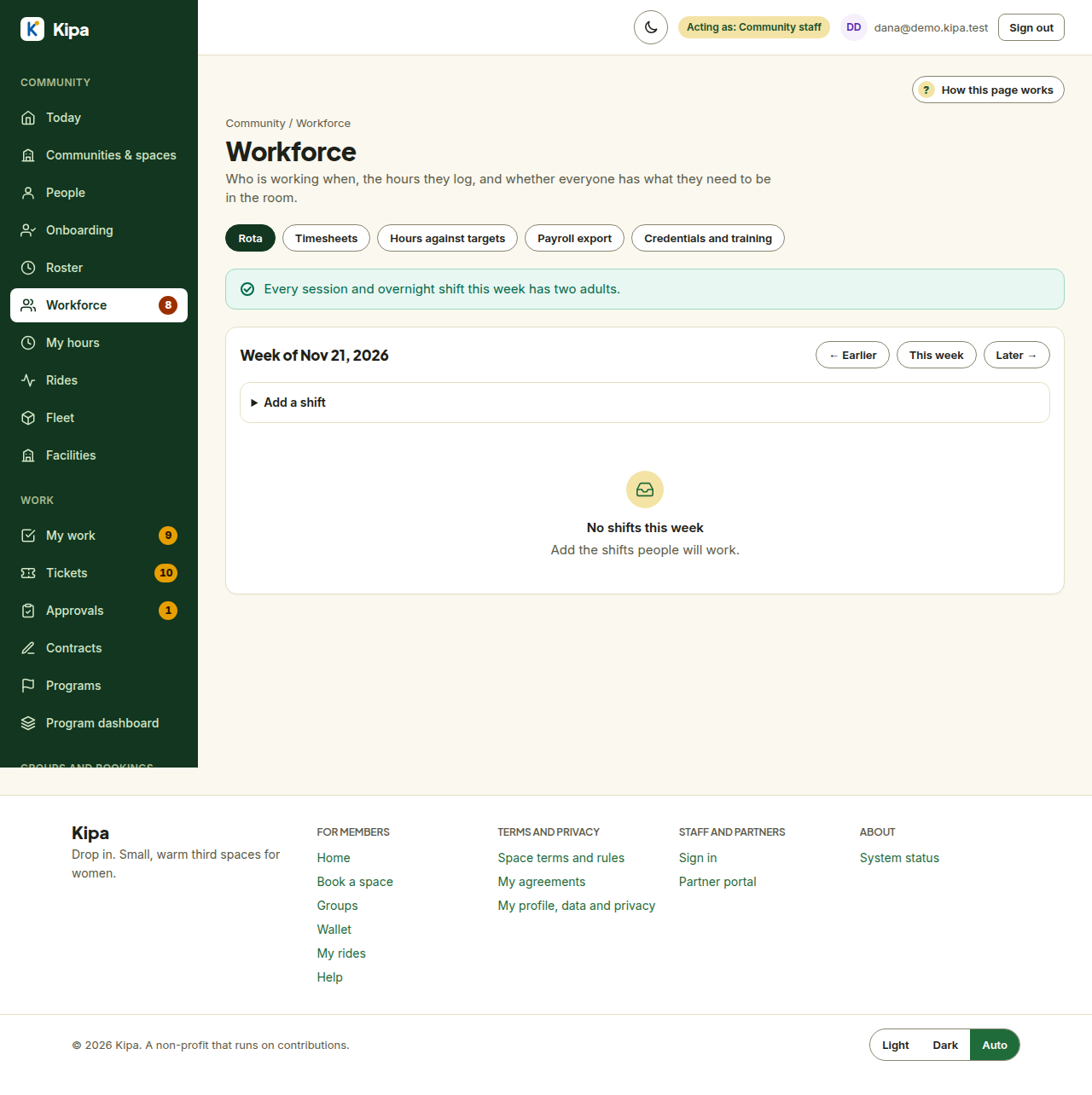
- Workforce. Check a person's required checks before a shift: missing checks stop the shift. Scheduling a shift with only one adult warns you two adults are needed. You cannot approve your own hours.
- Payroll export. Pick a period (up to 62 days). A table by person shows regular, overnight, contractor and total hours. A warning counts entries still waiting. Switch between by person and by day. Download CSV or Excel. Only approved hours are counted. There are no pay rates in either file.
- Facilities. Plan maintenance; a failed inspection raises a repair task. Add host sites and policies.
- Purchases, Assets and Stock. Buy a unit or supplies under a contract (this needs approval). After it is approved, receive the goods and stock goes up. Print asset labels with QR codes and scan one to open the asset. When a stock item runs low a reorder ticket appears.
Reports#
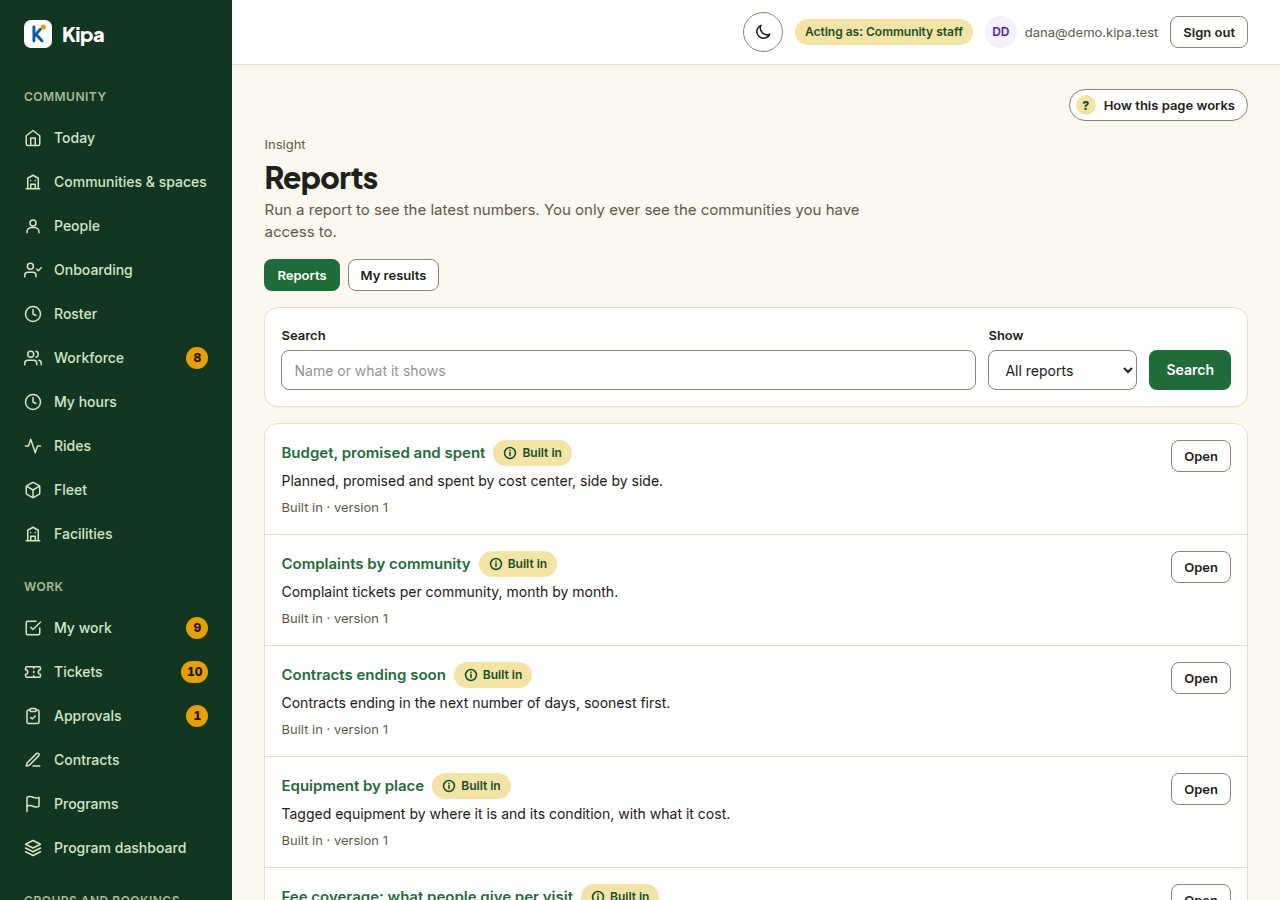
Run a built-in report and download it. You cannot build new reports; a System Admin does that.
If something goes wrong#
| You see | What to do |
|---|---|
| "This is already waiting for approval" | The case or request was already sent on. Open Approvals to see who it is waiting for |
| "No one can decide" on an approval | The team for that step is empty. Ask a System Admin to add people |
| You cannot find Pioneer Valley's page | You only see your own community |
| You cannot approve your own request | Someone else must |